

Keeping Pixel Density Constant with Unity's Fixed DPI Resolution Setting
Hello. I'm Hirayama from the Technology Department.
Today's topic is a small one, with no sample project: the resolution setting for builds.
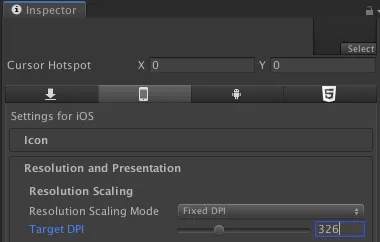
As in the screenshot, under Resolution and Presentation in PlayerSettings there's a section called
Resolution Scaling, where you can change Resolution Scaling Mode from the default Disabled to Fixed DPI
(Android manual,
iOS manual).
This setting automatically adjusts the resolution for each device so that the pixel density stays constant. In the image above it is set to 326 dpi (dots per inch: the number of pixels per inch), the standard value since around the iPhone 4. Apart from high-end models like the iPhone 6 Plus, most models have roughly this density.
What actually happens?
With this setting, a device whose display is 326 dpi renders at its native resolution. On an iPhone 8, for example, that's 1334x750.
But on a device whose resolution is high for the size of its screen, such as the iPhone 8 Plus, the resolution drops below native: the native 1920x1080 becomes 1560x878. Its native pixel density is a whopping 406 dpi, and bringing that down to 326 dpi scales both the width and the height by (326/406).
What is it for?
"To keep rendering at a needlessly high resolution from hurting frame rate and power consumption."
Rendering at a high resolution is certainly prettier, but it isn't free. A large part of the GPU load is proportional to the number of pixels, so rendering at 1920x1080 costs roughly 1.5 times as much as rendering at 1560x878. If the CPU has headroom and the frame rate is limited by the pixel count, turning this setting on could make the frame rate 1.5 times higher.
And if it was already running at 60 fps, you save power instead. Rather than burning electricity on a difference you can barely notice, it may be better to lower the resolution a little and keep some headroom. On phones, high power consumption often heats the device up, which throttles its performance and drags the frame rate down with it. Lowering the resolution in advance also helps prevent that.
A real example
In one case, an app that only got 40 FPS on an iPhone 6 Plus (1920x1080) went up to 60 FPS just by turning this setting on.
Also, on devices whose resolution is high for their GPU power, like some Android models (for example 1280x720 on the Kyocera S2 and 1920x1080 on the S4), running a game at full resolution was asking too much in the first place, and lowering the resolution improves the frame rate a lot. The S2 is 5 inches diagonally at 1280x720, and the long side, with its 1280 pixels, is 4.345 inches. Dividing 1280 by that gives 294 dpi.
That's lower than the iPhone's 326 dpi, but if you seriously ask yourself "does this game even benefit from such a high resolution?", for some products the answer will be "it could go a bit lower".
Letting players choose by offering options is one approach, but making the setting that suits most players the default is also important. As a way to balance image quality, frame rate and power consumption, setting it by pixel density (dpi) isn't a bad choice. It's a single setting, so the implementation cost is almost zero.
It depends on the nature of the product, but personally I think somewhere from 200 to 300 is good. The Nintendo Switch is 235 dpi (the Switch Lite is 268 dpi), and that feels like plenty. If that makes you nervous, you could instead use the iPhone, which sold in huge numbers, as the reference and set it to 326 as in the example above. That still prevents slowdowns on the Plus models. Even then, I think it's better to lower it on Android with low-end devices in mind (the dpi setting can't be kept separately for iOS and Android, so changing it with a script before the build is a good idea).
Dynamic fonts get prettier the higher the resolution, and so do the edges of 3D polygons, but textures prepared in advance can never look sharper than their own resolution. If the resolution is too high they just look blurry, which is hardly different from drawing them at a lower resolution. The frame rate and power consumption, though, will definitely get worse.
Another way
If you want to let players choose the resolution, this setting won't do: it applies to everyone the same way. Instead, you read the player's setting and call Screen.SetResolution after startup.
You can get the dpi from the Screen class too, so you can replicate Fixed DPI this way, but be careful. A resolution change doesn't take effect immediately; it waits until the next frame. And if you have code that depends on the resolution, it may break when the resolution changes. Applying it only right after startup is safe, but then the player can't check the result immediately, so it's less convenient. There's also the cost of building a settings screen, so think about the nature of the product and its value to the players, and make a good choice.
By the way, if players can set it themselves, you can offer quite aggressive settings (such as lowering the resolution to 768x432), which I think would please people who worry about power (for example, me) and people who use low-performance devices (for example, me). In a product I worked on in the past I made it possible to choose an energy-saving setting of 768x432 at 20 fps, but that was entirely for myself.
Pixel densities of common devices
Below is a table of the DPI of common devices. You'll want to go higher than any device you'd describe as "this one looks pixelated", but if it's "I can't tell the difference if it gets any finer" or "we didn't make the assets at such a high resolution anyway", I think it's fine to go lower. Higher-resolution assets also mean bigger data, which is bad for data charges and phone storage too, so as with everything, a sensible balance is best.
| Device | Diagonal (inches) | Resolution | DPI |
|---|---|---|---|
| iPhone 5S, SE | 4 | 1136x640 | 326 |
| iPhone 6, 6S, 7, 8 | 4.7 | 1334x750 | 326 |
| iPhone 6 Plus, 6S Plus, 7 Plus, 8 Plus | 5.5 | 1920x1080 | 406 |
| iPhone X, XS, 11 Pro | 5.85 | 2436x1125 | 458 |
| iPhone XS Max, 11 Pro Max | 6.46 | 2688x1242 | 458 |
| iPhone XR, 11 | 6.06 | 1792x828 | 326 |
| Many older iPads | 9.7 | 2048x1536 | 264 |
| Current iPad | 10.5 | 2224x1668 | 264 |
| 16:9 device, 5 inches diagonal | 5 | 960x540 | 221 |
| 16:9 device, 5 inches diagonal | 5 | 1280x720 | 295 |
| 16:9 device, 5 inches diagonal | 5 | 1920x1080 | 442 |
| 24-inch Full HD monitor | 24 | 1920x1080 | 92 |
| 13-inch Retina MacBook Pro | 13 | 2560x1600 | 232 |
| Nintendo Switch | 6.2 | 1280x720 | 238 |
| Nintendo Switch Lite | 5.5 | 1280x720 | 268 |
Adjusting it in QualitySettings
I haven't tried this one, but I happened to come across it while looking things up, so I'll mention it.
It seems the dpi value can be adjusted in QualitySettings. As the
official manual says, setting
Resolution Scaling Fixed DPI Factor lets you adjust the dpi value set earlier for each quality setting, such as
low or medium. Writing 0.5 halves it, so 326 dpi, for example, would become 163 dpi, and presumably the resolution
is halved.
If you're calling something like QualitySettings.SetQualityLevel based on the device's performance, does the resolution change dynamically as well? I don't know whether that works properly, or how long processing would stall.
In closing
This was a small topic, but it boosts performance far more easily than struggling through half-baked optimizations, so I strongly recommend it.
Personally, for applications with movement on screen, as most games are, rendering at more than 300 dpi feels like a waste of battery. If you have power to spare, making per-pixel processing such as lighting richer will probably raise the quality more than raising the resolution.