

Sending Assets Straight from the Unity Editor to a Phone for Checking
Hello. I'm Hirayama from the Technology Department.
This is a sequel to my article on running an HTTP server on a phone, and it covers a setup for sending data straight from the Unity Editor to a phone and checking it right away. All the code is on GitHub, but I haven't used it in real product development yet. For now it's a prototype.
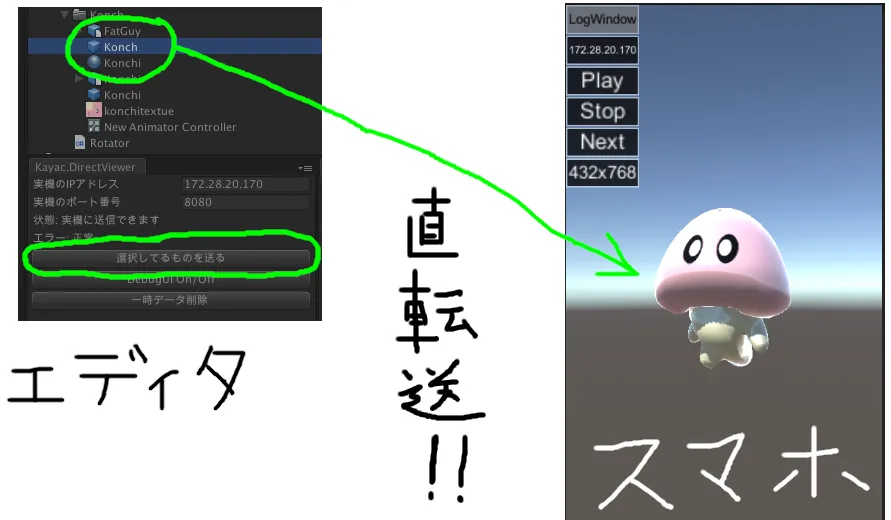
How to use it
- Install the app I made for this on the phone and start it.
- In the editor extension window I made, enter the phone's IP address and port number.
- The IP address is shown on the phone's screen. The port number is 8080 in this sample.
- In the editor's Project view, select the prefab you want to see on the phone.
- In the image, a prefab called Konch is selected.
- Press the "Send what's selected" button.
- It appears on the phone. If it has an animation that starts playing in MonoBehaviour.Start(), it plays.
On the phone, the controls are roughly as follows:
- Rotate and zoom with touch
- Press Play to start over from creating the instance
- Stop deletes the instance
- Press Next to move to the next prefab (if you sent several)
You can select a prefab, or a folder containing prefabs. The assets it depends on are sent along with it, so I think selecting just the prefab is the most convenient.
Bonus feature
On the phone there's a button showing the resolution. Press it and the width and height are divided by 1.414
(sqrt(2)), halving the total number of pixels. That tells you right away whether the frame rate is dropping
because pixel processing is heavy.
Going further, I'm also thinking of profiling on the phone with UnityEngine.Profiling.Profiler and sending the data to the editor over Wi-Fi, but the people using it will mostly be artists or game designers, so a one-line report like "shader is heavy" or "too many materials" would be more practical. That's something to work out next.
Things to watch out for
- Set the Unity Editor's Platform to match the device you connect. If you're using an iPhone, that's iOS. Otherwise you'll send incompatible data.
- The phone and the PC need to be able to talk to each other directly. For example, it won't work if they're on separate networks that can't reach each other.
What did I make it for?
To speed up development iteration.
Of course, with Unity you can see what you've made on the Unity Editor's screen. The Scene view shows it instantly, and if you want to see how it looks within the flow of the game, with the code running, you enter Play mode and look at the Game view. So there isn't much need to take things to a phone and check them every time.
But there are things that are better checked on an actual phone, and things you have no choice but to check on the device.
- Processing load
- You can't know how heavy it really is without running it on the device.
- In this sample I also put up a processing load meter. If it's heavy, you'll see right away.
- Whether the resolution is appropriate, and how it comes across at actual size
- PC monitors are big, so you're tempted to raise the resolution needlessly, but phone screens are small, so in many cases lower resolution won't even be noticeable.
- Checking the quirks of the hardware
- Sometimes things look different because of a hardware quirk (also known as a bug). I've seen a model where controlling Z-buffer writes seemed to have no effect.
Checking on the device takes effort, so the less of it you have to do, the less it costs. Some people say "checking on the device is the mark of a professional," but I think "a professional is someone who pushes to see how far they can get without checking on the device," so we probably wouldn't get along. Even so, I recognize that there are times when checking on the device is necessary, and if it's necessary anyway, it should be made as cheap as possible.
What happens without this?
Without a way to send things straight from the PC to the phone, there are, I think, two typical ways to check.
Put the data in the app itself and build
In principle you can do it without a programmer, but you need to put the data in the right place in the app's project, so in many cases you'll need a programmer's help.
If you use git to hand things over, you also have to run git operations, and if you build with Jenkins you need to go through that procedure too. Even with a streamlined procedure and builds on a fast machine, it's hard to get the wait under a few minutes. I'd guess it typically takes around 30 minutes.
Build an asset bundle and put it on a server
You build an asset bundle and put it on a server the app can access. You can either build on the artist's PC, or push to git or the like first and build on Jenkins, but either way you need a procedure for uploading the result to the server.
You probably won't need to go through a programmer, and it won't take as long as building the app, but I don't think it'll be under a minute.
So how would this be used?
This sample is just a sample. In a real product, things often won't work without the scripts in the app itself, and the features you need depend on the product.
For example, you might want to switch the lighting between morning and night to see how it looks, see the processing load when you switch between several quality settings, or show it together with other game elements. There's no end to the possibilities.
So I don't expect what I made this time to be used as is. Realistically, the choice will be between building a dedicated scene inside the app and building a dedicated app. A dedicated app probably makes sense when the app itself and the asset bundles are split into separate projects. Artists don't need the scripts used only in the app itself, and most programmers don't touch asset bundle materials, so splitting them is safer and more efficient.
Tools for artists and the like are probably best put in the asset bundle project, and this tool would be an example of that. When you need the same scripts as the app itself, you export a package from the app and import it.
Implementation
On the editor side, the tool quietly turns the selection into an asset bundle and PUTs it to the server on the phone with UnityWebRequest.
The phone app contains the HTTP server I introduced before. In the callback that runs on the file upload event, it loads the asset bundle, finds the prefabs in it and Instantiates them.
Roughly speaking, that's all. There's nothing difficult about the mechanism, but some parts are quite tedious.
Dealing with disconnects
Things like "for some reason it won't connect after I go up from the first floor of the office to the third" happen quite a lot. Wi-Fi probably dropped briefly while switching to a different router, but sometimes it stays flaky for a while after the drop. Sometimes I had to restart the app or turn Wi-Fi off and on again.
I'll look into the details over time, but either way, unless both the editor side and the phone side show the network connection status, you'll end up with "it's just not working for some reason," which makes the tool worse to use.
So every 5 seconds, the editor side calls an API on the phone (I've provided one called ping that does nothing) to check the connection. There may be a better way, so I'd like to ask someone who knows networking for advice.
The phone side is the server, so it simply looks at Application.internetReachability and periodically updates what's on screen. If it's connected it shows the IP address, and if Wi-Fi is down it shows "NO WIFI". I don't think it's a good idea to use a 4G connection for a tool like this, so I've made it unusable when Wi-Fi is down. The code to get the LAN IP address looks like this:
public static string GetLanIpAddress()
{
    string ret = null;
    foreach (var ni in NetworkInterface.GetAllNetworkInterfaces())
    {
        if ((ni.NetworkInterfaceType == NetworkInterfaceType.Wireless80211) || (ni.NetworkInterfaceType == NetworkInterfaceType.Ethernet))
        {
            foreach (var ip in ni.GetIPProperties().UnicastAddresses)
            {
                if (System.Net.IPAddress.IsLoopback(ip.Address))
                {
                    // Ignore
                }
                else if (ip.Address.AddressFamily == System.Net.Sockets.AddressFamily.InterNetwork)
                {
                    ret = ip.Address.ToString();
                }
            }
        }
    }
    return ret;
}
It isn't fast
When I wrote the earlier HTTP server article, I was only sending files of a few KB at most, so I hadn't thought about speed at all. But it turned out that sending megabytes of data takes tens of seconds, so I've been reworking the code.
Specifically, I changed the part that accepts the PUT and saves the file to persistentData from synchronous to asynchronous, so the CPU doesn't spin pointlessly. When the main thread keeps spinning in a while loop without a break, the HTTP server running on another thread seems to slow down too.
It's still slow, not even reaching 1 MB per second, but I think it's now at least fast enough to be usable. If you know a way to make it faster, please tell me!
The asset bundles I make are pink when viewed on the PC
Asset bundles for Android contain shaders that can only be used on Android. Android textures work on the PC too, but shaders don't. If an asset bundle contains a material and the shader that material uses exists only in the app itself, a copy of the shader goes into the asset bundle. Changing the shader in the app doesn't change the copy in the asset bundle, which is an accident waiting to happen, but that's another story.
While debugging this setup, I found myself wanting to view Android asset bundles on the PC too. If you play the viewer app in the editor and give it the PC's IP address, it works, except for the shaders. Things turn pink or stop picking up ambient light.
So when running in the editor, I decided to swap the shaders in the materials for the PC-side shaders.
material.shader = Shader.Find(material.shader.name);That's all. Get all the Renderers from the Instantiated GameObject, take out all the materials, find the PC-side shader with Shader.Find, and swap it in.
Bonus: making it faster
With lots of materials, this eats a fair amount of memory and time. Also, complex shaders with lots of material properties apparently require copying the properties one at a time, which makes it ridiculously slow.
You could argue that it doesn't matter if it's only in the editor, but in a real product it sometimes took over 200 MB of memory and over 4 seconds, which was a bit sad, so I dealt with it. The fix is included in this sample. It's a class whose English name I'm not too sure about, ImcompatibleShaderReplacer, and calling its Replace() recursively swaps the shaders of the materials, only when running in the editor.
It avoids wasted work by skipping materials that have already been swapped. If you naively register Materials in a HashSet, the HashSet grows without limit and the Materials stored in it leak memory, so it uses a fixed-size array that never grows past a certain number.
Closing
Being able to go through the tweak-check-tweak-check cycle quickly matters more than anything. When the wait is long, you get through fewer cycles and quality drops, and the waiting drains your motivation.
Here I tried out one way to speed up the cycle. Next I plan to customize it for a specific product and put it to real use. What I learn there will probably feed back into this sample too.
Even before customizing it for a product, I already know several things it needs.
- Light control
- Of course you'll want to move the lights too
- Showing something equivalent to the Hierarchy and the Inspector in the editor, so you can browse and change values
- You'll surely want to show, hide and move particular objects
- You'll surely want to see and tweak component parameters too
- Canvas support
- Right now, a prefab that expects to be Instantiated under a canvas shows nothing. There's no way to display things in 2D either.
Once these are done, I may write another article. It might also be nice to be able to view not just prefabs but a whole scene, a single mesh, or a single texture.
By the way, I heard a talk at Unite about doing something similar by communicating with the device over USB (from around page 106), and thought that's a good option too. Networks cause quite a lot of hassle, and typing in the IP is a chore too. Extending the tool to use USB as the first choice whenever it's connected seems like a good idea.