

Using Skinning to Draw Lots of Objects, Instancing-Style
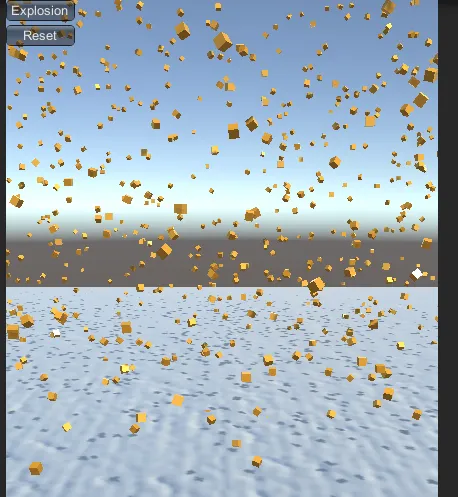
Click the screenshot to go to the WebGL build.
Hello. I'm Hirayama from the Technology Department.
This time I'll write about using skinning to draw lots of copies of the same thing.
The screenshot above shows lots of cubes (about 2000), but there's only one SkinnedMeshRenderer in the scene, and basically just one DrawCall (shadows and the Z prepass aside). There are also only six GameObjects in the scene, and adding more cubes doesn't require more GameObjects.
The source code is on GitHub in the form of a sample. The core is SkinnedInstancingRenderer.cs, but it doesn't do much and you'd likely need to customize it, so it probably won't be much use.
Ways to draw lots of things
Scattered debris, a field of grass: you often want to put lots of nearly identical things in different places. There's more than one way to do it.
- Duplicate lots of them in MAYA or Blender and do all the placement there
- Easy since there's nothing to control, but it eats memory, and you can't move each one independently.
- Simply place lots of GameObjects with MeshRenderers
- Easy since it takes no cleverness.
- If dynamic batching is enabled, Unity may batch them for you, but that costs CPU time.
- The processing load of GameObjects and Transforms falls on the CPU.
- GPU instancing
- A feature that, say, when placing lots of 100-vertex rocks, loops over the vertex buffer every 100 vertices while supplying different vertex data on each pass.
- Uses little memory, and per-vertex calculation happens entirely on the GPU, so it's fast.
- GLES3 or higher is required.
- Requires shader support. But with standard shaders that already support it, you just flip a switch on the material.
- If you use it the easy Unity way, the GameObject and Transform processing load remains.
- Use one-bone skinning in place of instancing
- Vertices are duplicated, so it eats memory and initialization takes time.
- Heavier on the vertex shader than GPU instancing.
- Works on GLES2.
- In Unity, it needs no shader support.
- Can be written without GameObjects or Transforms, which cuts CPU load.
Normally, if you only target newer devices, GPU instancing is probably the strongest option. It wins on memory efficiency, CPU load and GPU load alike, and it gives you more freedom, such as changing colors or UVs per object. But according to the Android Dashboard, as of September 2019 as many as 20% of devices are still on GLES2, and if you want to reach a wider range of customers, it seems a shame to cut them off. Also, adding instancing support to your own shaders probably takes a fair amount of knowledge and effort.
On the other hand, if performance isn't an issue, or the numbers are modest (a few hundred or fewer), simply placing lots of GameObjects takes no cleverness at all. However, placing 1000 or 2000 GameObjects in the scene ahead of time is a nuisance, so you'd Instantiate them from a prefab, and then the processing spike at initialization becomes a concern.
The technique I'll introduce here is an old one, but if you want to support old devices and still get reasonable performance, there may still be situations where it comes in handy.
How to do it
What you need
You need the following.
- A SkinnedMeshRenderer
- The mesh you want to draw lots of
- In the sample, a standard cube is placed out of sight and its mesh is grabbed via MeshFilter.sharedMesh at run time
- Any material you like
The SkinnedMeshRenderer is what actually does the drawing. Skinning is normally used for things like human and animal bodies, as a technique for smooth interpolation, but if you set the number of bones to 1, no interpolation happens, and you can use it simply to "move each vertex with a different matrix".
Generating a mesh with lots of copies in it
Create a new Mesh and fill it with copies of the original mesh's vertices. If the original mesh has 24 vertices (a cube, say) and you want to draw 100 of them, you make a mesh with 2400 vertices.
var mesh = new Mesh();
var origVn = originalMesh.vertexCount;
var vertices = new Vector3[count * origVn];
var normals = new Vector3[count * origVn];
var uvs = new Vector2[count * origVn];
var weights = new BoneWeight[count * origVn];
var poses = new Matrix4x4[count];
origVn is the original vertex count, and you make arrays of positions, normals, UVs and BoneWeights sized to that times count, the number of objects. A BoneWeight says "this vertex is a blend of the results of transforming it by these matrices, in these proportions", for example "20% matrix 0, 40% matrix 2, 40% matrix 5". Here only one matrix is used (no interpolation), so it's a simple specification like "100% matrix 24". The last one, poses, is an array of matrices, one for each object.
Now let's fill in the contents.
var indicesSrc = originalMesh.triangles;
var origIn = indicesSrc.Length;
var verticesSrc = originalMesh.vertices;
var normalsSrc = originalMesh.normals;
var uvsSrc = originalMesh.uv;
for (int i = 0; i < count; i++)
{
    poses[i] = Matrix4x4.identity;
    System.Array.Copy(verticesSrc, 0, vertices, i * origVn, origVn);
    System.Array.Copy(normalsSrc, 0, normals, i * origVn, origVn);
    System.Array.Copy(uvsSrc, 0, uvs, i * origVn, origVn);
    for (int j = 0; j < origIn; j++)
    {
        indices[(i * origIn) + j] = indicesSrc[j] + (origVn * i);
    }
    for (int j = 0; j < origVn; j++)
    {
        weights[(i * origVn) + j].boneIndex0 = i;
        weights[(i * origVn) + j].weight0 = 1f;
    }
}
Positions, normals and UVs are filled with System.Array.Copy, and the indices are written as offset copies of the original indices. If the first object uses vertices 0 to 99, the next uses 100 to 199, and so on, so you just add another 100 to the values each time the object number (i) goes up.
Finally, fill in the BoneWeights. Put the index of the matrix to use, which is the object number i, in boneIndex0, and set weight0 to 1.
This work scales with the number of vertices, so it's fairly heavy. If a brief spike and frozen screen when things first appear is acceptable, you can do it then, but otherwise it's best to do it while the screen is black. Alternatively, you could use the technique introduced in an earlier article to serialize the Mesh made by this calculation and turn it into an asset (it increases file size, so I don't recommend it).
Then assign everything to the Mesh.
mesh.bindposes = poses;
mesh.vertices = vertices;
mesh.normals = normals;
mesh.uv = uvs;
mesh.triangles = indices;
mesh.boneWeights = weights;
Set bindposes, vertices, normals, uv, triangles and boneWeights. That completes the initial setup of the Mesh. From here on, bindposes gets swapped every frame, but vertices, normals, uv, triangles and boneWeights are never touched again. That's why CPU load doesn't rise much even as the number of objects grows.
Preparing the SkinnedMeshRenderer
Next, set up the SkinnedMeshRenderer.
skinnedMeshRenderer.sharedMesh = mesh;
var transforms = new Transform[count];
for (int i = 0; i < count; i++)
{
    transforms[i] = gameObject.transform;
}
skinnedMeshRenderer.bones = transforms;
Set the Mesh you just made as sharedMesh. Then, for SkinnedMeshRenderer.bones, pass "an array filled with the same Transform". Normally you'd pass a separate Transform for each bone (elbow, shoulder, hip and so on), but here you stuff the root Transform into every slot. The final transform is the matrix built from the Transform in SkinnedMeshRenderer.bones multiplied by the matrix in Mesh.bindposes, so if you move things by swapping the bindposes yourself, you can do whatever you want even with all the Transforms the same. That way you don't need a GameObject and Transform for every object.
What to do every frame
After that, you move things by swapping the matrices in Mesh.bindposes every frame. Assigning to Mesh.bindposes probably makes a copy every time, which is a bit of a concern for GC. A Matrix4x4 is 64 bytes, and with 2048 of them as in this sample, 128kB of GCAlloc happens every frame. If this becomes a problem, it might be better to prepare a Transform for each object.
The sample's SkinnedInstancingRenderer has roughly this interface: BeginUpdatePoses() returns its internal Matrix4x4 array, the user writes whatever they like into it, and calling EndUpdatePoses() updates Mesh.bindposes so things move. If you know the position, orientation and scale, you can build the matrix with Matrix4x4.SetTRS(), so you don't need to know the details of matrix math. In the sample, I run a physics simulation and spin the cubes around by integrating quaternions.
Performance
I measured it running in the editor on a MacBook Pro 2018 (13-inch).
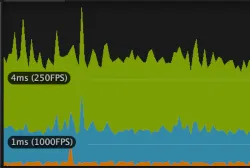
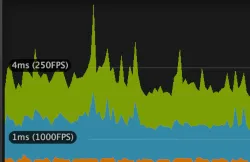
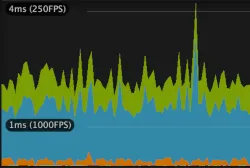
In order: plain GameObjects, the same with GPU instancing enabled, and this article's skinning. Roughly 4.5ms, 3ms and 2ms.
Naturally, scattering GameObjects everywhere is slow, but it doesn't seem as slow as I'd expected. Lots of GameObjects and Transforms probably aren't that slow in themselves. DrawCalls are at around 5000, and the rendering thread is clearly more loaded than in the others, but even so, it's not completely unusable. My guess is that's because Metal is underneath. I suspect it would be far more miserable on GL. PCs are one thing, but I have no idea how good GL implementations on smartphones are, so if you're going to draw well beyond the hundreds, it seems safer to do something smarter.
The second one is the same scene with the material's enable GPU instancing turned on. DrawCalls plummet to under 20, and the load on the rendering thread drops a lot, though not as much as I'd expected. In the end, it still has to look at every GameObject, Transform and MeshRenderer and batch them, so a fair amount of load remains. If you could skip GameObjects and Transforms and decide in advance what to draw together, it should be the fastest.
The last one is this article's method, and it came out fastest, at least under these conditions. There's no overhead from fiddling with GameObjects or Transforms, and since I decide by hand what to draw together, there's no extra load.
Let's look at the other threads too, just in case.
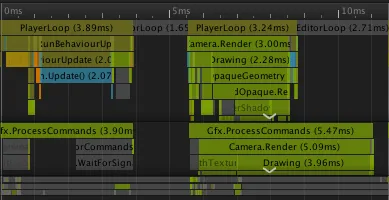
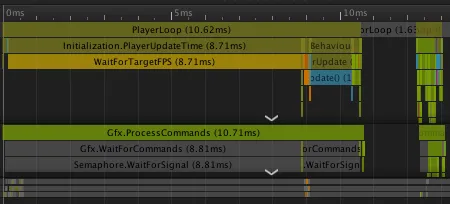
The first is plain GameObjects and the second is this article's skinning. Compare Camera.Render() on the main thread and the rendering thread (RenderThread). In the first it takes long enough (over 3ms) that you can read the label Camera.Render, but in the second the bar is so narrow (under 1ms) the label doesn't fit. Most of the time is spent sleeping in WaitForTargetFPS.
About skinning
Unity finishes skinning before drawing. A single model may be drawn several times, for shadows, a Z prepass and so on, and redoing the skinning in the vertex shader each time would be wasteful, so doing just the skinning up front reduces the total amount of computation. Also, if you needed different shaders depending on whether skinning is done, you'd need different materials too, which is a hassle; doing skinning separately beforehand leaves materials unaffected and makes things easier to manage.
On GLES2, skinning is computed on the CPU before drawing, so this technique should add CPU load proportional to the number of vertices. However, a highly optimized multithreaded implementation should comfortably handle tens of thousands of vertices per frame. And with one bone, there's very little to compute.
On GLES3, the flow is probably that a dedicated vertex shader does the skinning and saves the result into another vertex buffer, which is then used for drawing. The feature that, instead of passing the vertex shader's output on to the fragment shader, writes it into another vertex buffer and stops there is called Transform Feedback.
Also, on hardware that supports compute shaders, skinning seems to be done with them. Sure enough, the FrameDebugger on a MacBook Pro shows what appears to be a ComputeShader running.
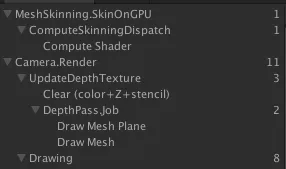
Unless the vertex count is extreme, skinning isn't much work for a GPU, so whether it's TransformFeedback or ComputeShader, you can just think "it's done on the GPU, so it's fast enough".
Constraints when it's done on the GPU
The question here is "how many objects can you draw?", which comes down to the limit on the number of bones, that is, the number of matrices.
As we've already seen, on PC it runs fine even with 2048 objects. That means more than 2048 matrices can be sent to the GPU. 2048 matrices at 64 bytes each (48 if you skimp) comes to 128kB. How does something that big get to the GPU? It must be as a texture.
Come to think of it, before 2005 there were GPUs whose vertex shaders only had memory for about 20 matrices (64 Vector4s). Even a little later, 70 or 80 was the limit for a while (256 Vector4s). After that, vertex shaders gained the ability to read textures and the limit went away, but texture reads in vertex shaders tend to be slow. If it were "2000 on PC but 20 on certain smartphone models", you couldn't rely on it, so I wonder how that's handled. My guess is textures.
The vertex count problem
Besides the number of matrices, there's also a limit on the number of vertices. With 16-bit indices, the highest vertex index is 65535, which means one SkinnedMeshRenderer may not be able to draw more than about 65,000 vertices. In fact, this sample tops out at about 2700 cubes. One cube is 24 vertices, so that's 64800 vertices, right near the limit. Beyond that, only part of the picture gets drawn. Cubes are fine, but the standard sphere has as many as 500 vertices, so even 128 of them overflow.
Apparently on most devices you can break through the 65536-vertex wall by setting Mesh.indexFormat, but I've never tried it.
Note that GPU instancing reuses the same vertices in a loop, so it has no vertex count limit. And since the matrices don't go in the shader's constant memory, the limit on the number of matrices is different too.
Closing
Wanting to draw lots of things comes up often in game development. But when you actually try it, it's quite a pain, and easy methods like "just flip the switch" sometimes don't perform as well as you'd hoped. This time I introduced one option: using skinning like instancing.
Incidentally, particles are a similar case of "drawing lots of things", but with only 3 or 4 vertices each, particles have too few for the "it's fast because you only send matrices" argument to hold. The number of matrices and the number of vertices aren't very different, so you end up concluding "in that case it's quicker to fill in the vertices directly and not have to think about matrices". There's no general answer to how many vertices per object makes this approach worthwhile, but roughly speaking, I feel skinning or instancing suits cases where conditions like "it has normals and is lit", "each has its own orientation and scale" or "each has tens of vertices" line up.