

Getting a Mesh Out of Unity as an .obj
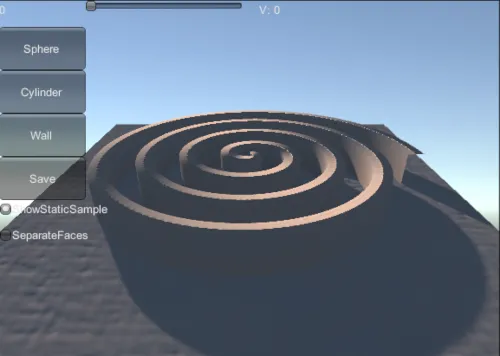
Click the screenshot to jump to a WebGL build of the sample. That said, the part this article is actually about, "turning it into an asset", only works in the editor, so there isn't much point.
Hello. I'm Hirayama from the Technology Department.
In this article I'll talk about saving a Mesh in a form you can take out of Unity (.obj).
The source code is on GitHub, but there is proven code that does the same thing, so you're better off using that.
When you just need it as an asset
Before getting into the main topic, here's what to do when you just need it as an asset. Say you want to put a mesh you generated by computation into a prefab, or place it in a scene and bake a lightmap. In that case you pass the mesh to AssetDatabase.CreateAsset() and you're done.
If you put the following code somewhere, you can right-click a MeshFilter and save the Mesh assigned to it.
[MenuItem("CONTEXT/MeshFilter/Save .asset")]
public static void SaveFromInspector(MenuCommand menuCommand)
{
    var meshFilter = menuCommand.context as MeshFilter;
    if (meshFilter != null)
    {
        var mesh = meshFilter.sharedMesh;
        if (mesh != null)
        {
            var path = string.Format("Assets/{0}.asset", mesh.name);
            AssetDatabase.CreateAsset(mesh, path);
            AssetDatabase.SaveAssets(); // Without this you only get an empty mesh and the contents are lost
        }
    }
}
This way you avoid both the implementation effort and the limitations described below.
However, calling it on the built-in Sphere or Cube, or on a mesh that already exists as an asset, gives an error. So if you're hoping to grab the built-in sphere mesh, this won't do it.
How to use it
First, take ObjFileWriter.cs and put it in your project.
From the Hierarchy
In the Inspector, bring up the MeshFilter component that holds the dynamically generated Mesh, and right-click on the component's name.
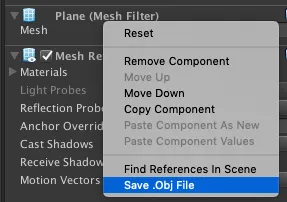
Click the Save .obj menu item. The Mesh on the MeshFilter is then written out to Assets/ in
the .obj file format and imported.
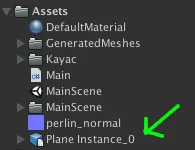
From there it's the same as dropping in an FBX. It becomes a prefab, so drag it into the Hierarchy and it shows up.
From the Project
Select a mesh asset, right-click, and choose Save .obj, and it's written out in .obj format in the same folder.
Limitations
- Only positions, one UV set, and normals are written.
- If there are several submeshes, they're written out separately.
- Materials aren't written.
These limitations come from my choice of the .obj format and from me cutting corners. The ones that come from the format could be solved by choosing something like COLLADA (.dae), but if I were going that far I'd rather use something that already exists.
Motivation
There are two things I wanted to do.
- Turn a dynamically created mesh into an asset
- Get a dynamically created mesh out of Unity
If you can do the first, you can make a mesh you generated by computation static and put a lightmap on it, as in the
screenshot at the top. But as I said at the start, that's just AssetDatabase.CreateAsset().
The second is the tricky one. Imagine a small game where you clear stages one by one. A puzzle game is a good example.
Deciding the stage dimensions and placing walls is the game designer's job. They iterate in a stage editor or something similar to find a layout that makes the game fun.
At this point the game is drawn with debug rendering or the like, probably nothing but lines. You can't sell it like that, so you hand it to an artist to model, and "mesh data with the right dimensions" can then serve as the spec. You no longer have to hand it over in some painful form like an Excel sheet used as graph paper.
Also, on a Mac you can preview the contents just by selecting the file in Finder. .obj is a widely supported format, so plenty of tools can show what's inside.
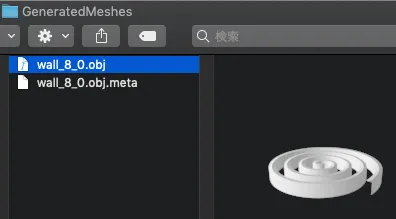
With all that in mind, as long as you don't run into its limitations, .obj starts to look even more convenient than the standard .asset.
By the way, if you write it out as .asset, it's a bare mesh, so when you drop it into the Hierarchy it has no
material and shows up pink. If you write it out as .obj, it becomes some non-Mesh type (not a prefab
either) that a t: model search picks up, and it comes with the default material, so just dropping it in gives you something
reasonable on screen.
A little about .obj files
The .obj file is about as simple as a file format gets. Here's the data for a regular tetrahedron generated by a program.
Generated by Kayac.ObjFileWriter. 6 vertices, 8 faces.
# positions
v -0.50000000 0.00000000 0.00000000
v 0.00000000 -0.50000000 0.00000000
v 0.00000000 0.00000000 -0.50000000
v 0.00000000 0.00000000 0.50000000
v 0.00000000 0.50000000 0.00000000
v 0.50000000 0.00000000 0.00000000

# normals
vn -0.50000000 0.00000000 0.00000000
vn 0.00000000 -0.50000000 0.00000000
vn 0.00000000 0.00000000 -0.50000000
vn 0.00000000 0.00000000 0.50000000
vn 0.00000000 0.50000000 0.00000000
vn 0.50000000 0.00000000 0.00000000

# triangle faces
f 1//1 3//3 2//2
f 1//1 5//5 3//3
f 2//2 4//4 1//1
f 1//1 4//4 5//5
f 2//2 6//6 4//4
f 4//4 6//6 5//5
f 2//2 3//3 6//6
f 3//3 5//5 6//6
It's so simple it hardly needs explaining, and if you only need to write it, the implementation takes no time at all. v is a vertex position and vn is a normal. It's not in this example, but vt is a UV. Then f defines a face by grouping the vertex, UV and normal indices. The one thing to watch out for is that indices start at 1.
A little about context menus
A menu that appears when you right-click a component can be implemented like this:
[MenuItem("CONTEXT/MeshFilter/Save .obj")]
public static void SaveFromInspector(MenuCommand menuCommand)
{
    var meshFilter = menuCommand.context as MeshFilter;
    if (meshFilter != null)
    {
        var mesh = meshFilter.sharedMesh; // Using mesh instead would make a copy
        if (mesh != null)
        {
            Write("Assets", mesh, importImmediately: true);
        }
    }
}
The MenuItem attribute's argument starts with CONTEXT/, followed by the component's type name (MeshFilter here)
and then the item name that appears in the menu. The method receives a MenuCommand, and from it you can get the
component instance, and with that, the Mesh.
Closing
Truth is, I wrote the .obj export before I knew AssetDatabase.CreateAsset() existed, and I only found out about
the existing implementation after I'd finished. When I searched again while writing this article, all sorts of
things turned up and I panicked.
I can't for the life of me understand why none of it turned up when I supposedly searched beforehand. They say people only see what they want to see; maybe my urge to build it myself blinded me.
...Though I can't imagine I actually wanted to write something this dull.
Still, looking back once it was done, I think implementing it myself wasn't so bad.
- The features I wanted were limited, and something smaller than the existing implementation was enough.
- The existing implementation calls float.ToString() without specifying a precision, and the precision lost at six decimal digits bothers me.
- The existing implementation takes a MeshFilter as its argument, but I wanted to write out from plain Vector arrays and int arrays.
- Writing out every subMesh actually gets in the way for my use.