

I Want to See Sound Spectrum Analysis on an Actual Smartphone
Hello. I'm Hirayama from the Technology Department.
Today's topic is a small one: I made a tool that shows a spectrum analysis of the sound on the device itself. The source code is on GitHub; just grab it, attach it to any gameObject, and it works. Like Image and Text, it's a class derived from UnityEngine.UI.Graphic, so place it under a canvas.
What is this?
It runs a spectrum analysis on the AudioListener, that is, on the sound being output, and graphs its frequency components.
Here's a video of it running in the waveform generation sample I made in an earlier article.
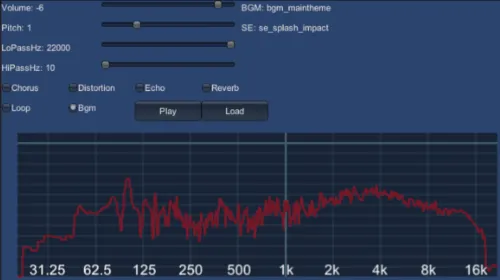
Starting from C at 262 Hz, it plays do, re, mi, fa, so, la, ti, do in order, and at the end plays a C-E-G-B chord. The output is pure sine waves, so each note is visualized as a thin spike. The vertical axis is strength (decibels), and the horizontal axis is frequency (Hz). Can you see the frequency components in the graph at the top right change? On the horizontal axis, the thick vertical line is 1000 Hz, and each vertical line halves the frequency; on the vertical axis, the thick horizontal line is 0 dB, and each horizontal line is 6 dB.
The same thing is also built into the sample for the article on filtering sounds (that's the screenshot at the top). That version has extras aimed at real-world use, such as being able to load external files.
Motivation
Why did I make this? Because someone asked for it: "I want to visualize how much compression degrades the frequency components!"
The higher the frequency, that is, the higher the pitch, the more data it takes. When compressing sound, the standard approach is to shave off the high frequencies, and as a result, when you graph the frequency components, the right side gets shaved away.
Of course, if it sounds fine, it's fine, and conversely, if it looks fine on the graph but sounds bad, it's bad. Still, cases where it's "clearly shaved off" can be spotted at a glance, which makes checking a bit less work.
In Unity, compression happens at import; the sound artist can't choose the compression settings themselves and hand over an already-compressed file. So you can't tell how a sound ultimately got compressed without checking in the UnityEditor or on a device build. Texture compression has the same problem.
Here's what it actually looked like when I compressed a certain sound asset with various settings.
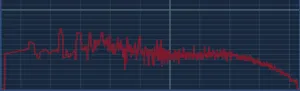
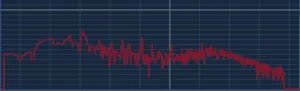
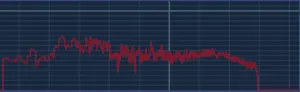
In order: Vorbis with quality=35, quality=1, and mp3 at 64 kbps. The mp3 was compressed with separate software (Audacity) and imported as uncompressed PCM.
With quality=35 Vorbis, the graph shows activity beyond 16 kHz, but at quality=1 everything above 15 kHz is shaved off. And with the 64 kbps mp3, everything above 8 kHz is gone. At that point the sound is pretty disappointing.
It should also be handy for checking how a filter applied at runtime is working.
Usage details
It's a single component, so you attach it to a gameObject and you're done (if a prefab were acceptable, it could show numbers as in the screenshot at the top, but I prioritized ease of setup and drew it with lines only). If you're happy with the defaults, you don't need to set anything in the inspector.
For the record, the inspector items are as follows.
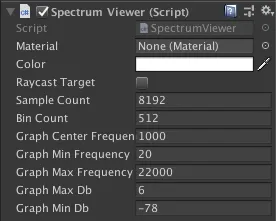
- Sample Count: The higher this is, the more precise the data, especially in the low range. If the CPU load is no problem, I think you can leave it as is.
- Bin Count: The horizontal resolution of the graph. Reducing it reduces the UI drawing load.
- Graph Center Frequency: The frequency (Hz) of the thick vertical line. The default is 1000.
- Graph Min Frequency: The minimum Hz. The default is 20.
- Graph Max Frequency: The maximum Hz. The default is 22000.
- Graph Max Db: The maximum of the vertical axis (decibels). The default is 6 dB, but I feel 0 would be fine too.
- Graph Max Db: The minimum of the vertical axis (decibels). The default is -78 dB, but I feel around -60 would be fine too.
Note that for as long as the component's enabled is true, you pay the full cost of both AudioListener.GetSpectrumData() and the UI updates, so take care not to show it when you don't need it. Changing canvas vertices is an expensive operation to begin with, and this uses quite a lot of vertices, so make sure it never ends up in a product you ship.
Implementation
The implementation just calls AudioListener.GetSpectrumData() on every Update, groups the results by frequency, and draws a graph.
The float array that GetSpectrumData() fills in holds the Fourier transform of the most recent output waveform data. If you pass an array of 4096 elements, you get the strength of each of 4096 frequency components.
With the output frequency (AudioSettings.outputSampleRate) as Fo, the frequency Fk that element k corresponds to is
Fk = Fo * 0.5 * k / 4096If the output frequency is 44100 Hz, element 0 has k = 0, so 0 Hz. Element 1 is 44100 * 0.5 * 1 / 4096, so 5.38 Hz. The last one, element 4095, is 44100 * 0.5 * 4095 / 4096, so 22045 Hz. The 44100 is multiplied by 0.5 because, in the result of a discrete Fourier transform, the part above half the sampling frequency (44100 Hz in this case) is known to be a mirror image of the part below it. So the lower half is all you need (when I first implemented it, the frequencies were off by a factor of two, and this was why). On this point, someone on the Unity forums gives a detailed explanation.
Next, it groups the data for display. The display shows frequency on a logarithmic scale, so if, for example, you show 1 Hz to 16 Hz in four steps, you split the data into four groups,
- 1 to 2
- 2 to 4
- 4 to 8
- 8 to 16
sum each group, and graph the totals. Each of these groups is often called a bin, a term that comes up a lot when making histograms. By default it has 512 bins.
Note that the lower the bin, the fewer source data points it corresponds to, so if you want low-range data, you need to pass a larger array to GetSpectrumData. Incidentally, Sample Count in the inspector is the size of this array.
Beyond that, the knowledge the implementation calls for is probably:
- Knowing how to fill in vertices in UnityEngine.UI.Graphic.OnPopulateMesh
- Being comfortable with logarithmic conversion
The vertical axis is also in decibels, so you need to convert what comes out of GetSpectrumData logarithmically to find the height of the graph.
Closing
So now that we can do this, how should we actually use it?
Depending on the game, the number of sound asset files can be in the thousands or tens of thousands, and you can't test the sound quality of each one. Most likely you'd first check the sound quality for each compression setting with a few files, settle the parameters for each type, set them all at once with a script, and never look at them individually again. This tool may only be useful for that initial step of "deciding the settings". That said, there are a few dozen BGM tracks at most, so you could check them individually.
The standard bitrate of Vorbis is 112 kbps (112 kbit/s = 14 kB/s), and it's said that at around that setting, "ordinary people can't tell it from the original". As far as I could tell from trying it in Unity 2019.1.3, this 112 kbps is what you get when the quality setting at import is 35. Setting quality to 1 brings it down to 45 kbps. The size drops to less than half, but the sound quality drops considerably. Where to land between the two probably depends on the product.
Incidentally, at the same size, mp3's degradation is more noticeable than Vorbis's. As shown above, even at 64 kbps, the sound quality is worse than 45 kbps Vorbis. That shows up in the graph too. With everything above 8 kHz shaved off, it ends up sounding like it's coming from quite far away. With Vorbis, even at 64 kbps (16 in Unity's setting), content survives up to nearly 16 kHz, and it seems quite listenable.
In 2019.1.3 you can no longer choose mp3, so by default you'll be using Vorbis, but those of you on older Unity versions should be careful.
Also, if the source asset you import was an mp3 in the first place, the sound quality will naturally drop. Ideally you'd import uncompressed wav data into Unity, but there are probably cases where people compress before importing because they don't want the Unity repository to bloat. In that case, you just have to accept the degradation.