

Making Unity Debugging More Efficient with Slack
I'm Hirayama from the Technology Department. In this article, I'll show how we used Slack to support debugging on our game Tokyo Prison.
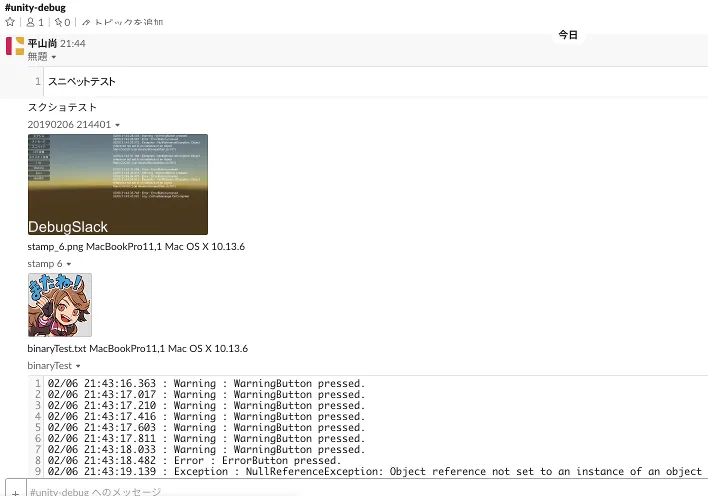
The image above is a screenshot of a temporary workspace I made for this article. It shows the following, all posted from Unity.
- The one labeled "Snippet test" was posted as a snippet, which suits longer text. Plain messages can of course be posted too.
- Next is a screenshot.
- The image that says "See you" comes from a feature that posts any texture. We mainly used it to check what had been drawn to RenderTargets.
- The last one is a feature that posts any file. Here it posts a file recording Unity's log.
The code is on GitHub along with a sample project, and works once you've done the setup on the Slack side. It's a cleaned-up, partly trimmed version of what we used on Tokyo Prison, so it isn't identical. It should be reasonably usable as is, but adapting it to each product's needs will make for an even more efficient development setup.
Many of these features were written by my senior colleagues; all I did was write this article. I'm grateful to them for building such useful features.
Motivation
When you develop as a team, you want to share what's going on with everyone whenever a bug occurs. At Kayac, Slack is the main tool for communication, so it's natural to gather information about bugs in Slack as well.
Information about a bug means things like
- a screenshot
- information about the device it happened on
- the time
- the log accumulated up to that point
- the scene currently open
Naturally, you want to be able to send and collect all of this with a single button, not only from the Unity Editor but also from actual smartphones. That way, you can also collect the bug information that comes up when playtesting on lots of real devices.
Fortunately, the implementation needed for this isn't very big. There are, however, a few things to be careful about in how you run it.
Preparing the Slack side
First you need to set up a Slack account and an App. There are plenty of good articles on this elsewhere. This one, for example, is helpful (it's what I followed myself). In outline:
- Create a Workspace (if you're developing a product, you'll already have one)
- Create an App, grant it permissions, and get a token
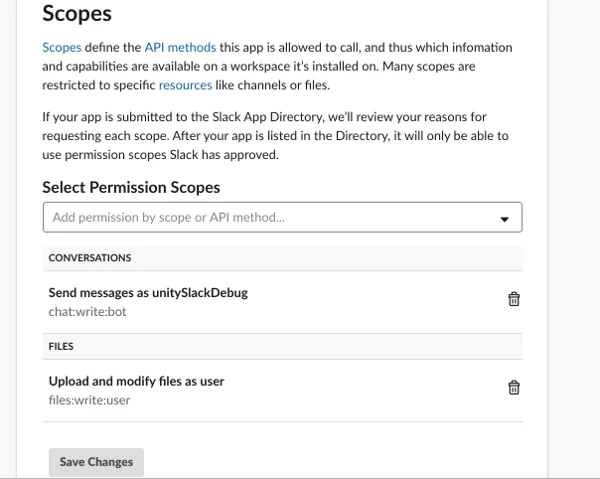
If you want to upload files such as screenshots, the permissions you need are not only "Send messages as <user name> (chat:write:bot)" but also "Upload and modify files as user (files:write:user)".
This token has to be kept secret. If it leaks, posts may come flying in from who knows where. That said, the more strictly you guard it, the more of a hassle it becomes, so it's a judgment call. At a minimum, I'd suggest rules like
- don't put it in git
- make one per product, rather than one for the whole company that gets reused
In this sample, the token is written in a text file placed under StreamingAssets and kept out of git via .gitignore. Since it ends up in the build, if you distribute the build to the general public, you need to delete the file before building and disable the Slack-related features too.
On Tokyo Prison we went one step further and encrypted the token.
Implementation
Now for the Unity side. There are plenty of good articles on this too.
- [Unity] A class that sends messages to Slack using the Slack API - Kogane Blog
- [Unity] A class that uploads screenshots to Slack using the Slack API - Kogane Blog
- Let's build an efficient workflow with Unity x Slack x Github!
The last one is from our own blog, by Zhao, who worked with me on Tokyo Prison right to the end.
Still, it's handier to get the gist from this article alone, so here's a rough explanation.
Overview and simple posts
In short, all you do is send HTTP requests in a particular way. Roughly, the steps are:
newa WWWForm and pack the data into it.- Create a request with UnityWebRequest.Post.
- Send it with UnityWebRequest.SendWebRequest.
- Wait if you need to.
Written as code for a simple post, it looks like this:
IEnumerator CoPost(string channel, string message)
{
    var form = new WWWForm();
    form.AddField("token", _apiToken); // pass the token in somehow
    form.AddField("channel", channel); // name of the channel to post to. channel, not channels. Singular.
    form.AddField("text", message);
    var req = UnityWebRequest.Post("https://slack.com/api/chat.postMessage", form);
    var operation = www.SendWebRequest();
    while (!operation.isDone)
    {
        yield return null;
    }
}
Pass this to StartCoroutine, or call MoveNext() on it in Update, and the request will eventually finish (I do yield return null; while checking isDone so that you still have the option of calling MoveNext() yourself).
Snippet posts
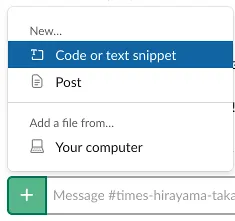
Once the text gets a bit long, having it pasted straight into the channel can get in the way. That's when you post a snippet. Normally, you create one by pressing the + button to the left of the message box. We do the same thing from Unity.
The differences from posting a simple message are:
- The endpoint is files.upload, not chat.postMessage.
- The content goes in content, not text.
- You can specify a filename. You don't have to.
- It's channels, not channel. Plural, not singular.
As code:
var form = new WWWForm();
form.AddField("token", _apiToken); // pass the token in somehow
form.AddField("channels", channel); // it's plural!
form.AddField("content", message);
form.AddField("filename", filename);
var req = UnityWebRequest.Post("https://slack.com/api/files.upload", form);
...(rest omitted)...
That's all there is to it. A snippet is treated as a file upload. Sending a screenshot or a log works the same way.
Posting any file
Next, let's post an arbitrary file. A snippet is ultimately a file upload, so this is the same thing, but because you pass a byte array (byte[]), the way you pack the data is different.
- The content goes into file with AddBynaryData().
- The message goes into initial_comment.
var form = new WWWForm();
form.AddField("token", _apiToken); // pass the token in somehow
form.AddField("channels", channel); // it's plural!
form.AddBinaryData("file", binary, filename);
form.AddField("initial_comment", message);
var req = UnityWebRequest.Post("https://slack.com/api/files.upload", form);
...(rest omitted)...
You pass the byte[] and the file name with AddBinaryData, and put the message in initial_comment. Now you can post any file you like.
Screenshots
And now, finally, screenshots. The steps are:
- Write the function as a coroutine (a function returning IEnumerator).
- Use
yield return new WaitForEndOfFrame();so that what follows runs once drawing has finished. - Create a Texture2D to receive the image.
- Get the rendered result with Teture2D.ReadPixels.
- Get PNG file data with ImageConversion.EncodeToPNG.
- Send it with the file-posting code from the previous section.
The code looks like this.
public IEnumerator CoPostScreenshot()
{
    yield return new WaitForEndOfFrame();
    var width = Screen.width;
    var height = Screen.height;
    var tex = new Texture2D(width, height, TextureFormat.RGB24, false);
    tex.ReadPixels(new Rect(0, 0, width, height), 0, 0);
    var pngBytes = tex.EncodeToPNG();
    yield return CoPostBinary(pngBytes); // send with the any-file posting function
}
Since it uses WaitForEndOfFrame, it has to be called through StartCoroutine. Calling MoveNext yourself probably won't work properly.
Many articles call Texture2D.Apply after ReadPixels, and Tokyo Prison had it too, but I'm not really sure it's necessary. Judging from the ReadPixels manual, it doesn't seem necessary unless you need the result reflected in the mipmaps, and it does in fact work in the editor and in Standalone builds (Apply only schedules the transfer to the GPU and mipmap generation, right?). That said, I didn't try it on real devices this time, so maybe it doesn't work without it. If so, please let me know.
Running it
That completes the features themselves; the question is how to put them to use in development. In this sample, I've provided these Slack posting features as a DebugSlack class. If you glance at the code you'll see it isn't all that small. Below are the things we did to make it practical to use.
Class design
The class is an ordinary class, not a MonoBehaviour. You new it to use it.
public DebugSlack(string apiToken, string defaultChannel)In the sample, the code that does this new is in the Main class, like this:
Kayac.DebugSlack _slack;

void Start()
{
    var tokenFilePath = Application.streamingAssetsPath + "/slackToken.txt";
    var tokenFile = new System.IO.StreamReader(tokenFilePath); // better to encrypt it!
    var token = tokenFile.ReadToEnd();
    tokenFile.Close();
    _slack = new Kayac.DebugSlack(token, _defaultChannel);
}
Aside: why it isn't a singleton
DebugSlack is a feature you want to use from anywhere, and one instance is enough. That makes it tempting to turn it into a singleton, but I haven't. I'm the type who takes joy in object ownership forming a tree, so I dislike singletons, which fall outside the tree.
There's another reason too: once something is a singleton, you can't abstract it with an interface later even if you want to.
Say, for example, you want to isolate a class or a scene that uses the DebugSlack class and unit-test it. If DebugSlack is a singleton, you can't test without the DebugSlack class. But if it isn't a singleton, you can make an interface like IDebugSlack, prepare an empty implementation, and test without the real DebugSlack.
Even so, the convenience of a singleton, being usable without a reference, is attractive. And so a compromise is born: one singleton class at the root of the world, which holds everything as instance variables.
In Tokyo Prison's case, there was a scene called BaseScene that was loaded at startup and never destroyed, and it held an instance of a MonoBehaviour class also named BaseScene. We made that a singleton, and most of the "XxxManager" classes were its instance variables. For example, you could access them like this:
BaseScene.instance.soundManager.PlayBgm("hoge");
BaseScene.instance.debugUi.AddButton("ボタン");
As it stands, this can't be isolated, which defeats the whole purpose, but we put convenience first. In practice, you rarely isolate things to test them, and it's often easier to just load BaseScene during tests as well.
But if BaseScene is the only singleton, you still have options when you really do want to isolate something, because all you have to do is change the code so it doesn't look at BaseScene. For example, you could restructure it like this:
ISoundManager _soundManager;
IDebugUi _debugUi;
public void Init(ISoundManager soundManager, IDebugUi debugUi)
{
    _soundManager = soundManager;
    _debugUi = debugUi;
}

// where it's used
_soundManager.PlayBgm("hoge");
_debugUi.AddButton("ボタン");
Then you can unit-test it without the real SoundManager or DebugUi by preparing empty fake implementations. If everything were a singleton, there'd be nothing you could do.
To sum up, I don't use singletons much for two reasons:
- to keep object ownership a tree
- because someday I might want to isolate something and test it
Screenshots
The screenshot function has the following arguments.
public IEnumerator CoPostScreenshot(
    string message = null,
    System.Action onImageCaptured = null,
    OnComplete onComplete = null,
    string channel = null,
    int waitFrameCount = 0)
If the message is omitted, the device model and OS type are added automatically. They come from SystemInfo.deviceModel and SystemInfo.operatingSystem.
onImageCaptured is called when capturing the screen data has finished. For example, if you hid the debug UI before taking the screenshot, you could bring it back here. Sending takes time, so this is provided separately from onComplete, which is for when sending is done.
onComplete is what runs when sending completes. If you want to show a popup, this is the convenient place to specify it.
The last one, waitFrameCount, says how many frames to wait before grabbing the screen data. For example, when you hide the debug UI, depending on the order of Updates and internal processing, hiding it might not show up on screen unless you wait a few frames. I suspect that if you just put in something like 3 it'll work pretty much anywhere, but that might make you miss the moment you wanted to capture, so settle on a value in your actual environment.
The file name is generated automatically from the time.
Posting textures
This is a feature that sends any texture. That said, you rarely want it for textures prepared in advance; the main use is RenderTextures. Tokyo Prison uses RenderTextures in quite a lot of places.
For example, characters change into all sorts of clothes, but if every part had its own texture, DrawCalls would pile up and it would be slow, so we gather the current combination of clothes into a single texture.
Also, on complex screens we sometimes draw to a RenderTexture once to lower the load, and use that from the next frame on.
Whether these RenderTextures are working properly is quite hard to debug, and it's a real pain when the bug only shows up on actual phones. In that case, the thing to do is post it to Slack.
   var tex2d = texture as Texture2D;
#if UNITY_2018_1_OR_NEWER
    if ((tex2d == null) || !tex2d.isReadable) // when it isn't 2D, or can't be read as is
#else
    if (true) // before 2018 there's no isReadable and we can't tell, so always go through a RenderTexture
#endif
    {
        RenderTexture renderTexture = texture as RenderTexture;
        // if what came in isn't a RenderTexture, create a RenderTexture and copy into it
        if (renderTexture == null)
        {
            renderTexture = new RenderTexture(texture.width, texture.height, 0);
            Graphics.Blit(texture, renderTexture);
        }

        // create a texture for reading and swap it in
        tex2d = new Texture2D(texture.width, texture.height, TextureFormat.RGBA32, false);
        RenderTexture.active = renderTexture;
        tex2d.ReadPixels(new Rect(0, 0, tex2d.width, tex2d.height), 0, 0);
    }
    var pnbBytes = tex2d.EncodeToPNG();
texture is the texture received as an argument. From 2018 on, you can use Texture2D.isReadable to tell whether you can EncodeToPNG directly, but in earlier versions you can't. So first we check whether it's a RenderTexture. If it is, setting it as RenderTexture.active lets you get the data with ReadPixels as if "it were what's on screen right now".
If it isn't a RenderTexture, we get the data in this order: create a RenderTexture, copy into it with Graphics.Blit, and ReadPixels from it into the receiving Texture2D.
The rest is the same as posting any other file.
Sending logs
Debug.Log and Debug.LogWarning are indispensable tools for debugging, but they're harder to make use of on real devices. One approach is to show them on the device's screen, and Tokyo Prison does that too, but phones are small, so you can't show much. Making it scrollable removes that problem, but if you accumulate too much, it eats into memory.
So on Tokyo Prison we created log files in PersistentData and wrote to them. You can have several logs, used for different things, like "number 0 is for scene transitions, number 1 is for battle effects...".
But getting these off the device is a hassle, so naturally you want to send them to Slack. We had a feature that zipped several logs and sent them to Slack.
However, putting all of that in the sample would drag in the zip-related code and make it big, and most development is probably based on the standard Debug.Log. For this sample, I stopped at "capture the output of Debug.Log, accumulate it in memory, and send that to Slack". Please have a look at MemoryLogHandler.
How to capture Unity's log
To capture what appears in the editor's console, such as Debug.Log, you add a callback function to Application.logMessageReceivedThreaded. Application.logMessageReceived is fine too, but then Debug.Log calls from other threads won't come through, so it's less practical.
There's also the approach of replacing the logHandler held by Debug.unityLogger, but it doesn't suit this purpose. ILogHandler.LogException isn't called for exceptions such as null reference crashes, so exceptions alone need a separate route; you also need to pass things back on to the standard logHandler (otherwise they stop showing up in the console); and the cost of string formatting is paid twice.
public MemoryLogHandler(int lineCapacity)
{
    ...(omitted)...
    Application.logMessageReceivedThreaded += HandleLog;
}

void HandleLog(string logString, string stackTrace, LogType type)
{
    var message = DateTime.Now.ToString("MM/dd HH:mm:ss.fff") + " : " + type.ToString() + " : " + logString;
    // only output the call stack for Error-type logs. Could be made configurable.
    if ((type == LogType.Exception) || (type == LogType.Error) || (type == LogType.Assert))
    {
        message += "\n" + stackTrace;
    }
    Add(message);
}
MemoryLogHandler is also an ordinary class that you new to use. Making it a singleton would remove the risk of accidentally creating several and wasting memory and CPU, but I don't feel it's worth it. It's up to you.
However, if you write an implementation that tinkers with unityLogger.logHandler, calling it twice could be fatal, so I think it's better to make sure somehow that multiple instances aren't created. A singleton is one way to do that. This implementation uses Application.logMessageReceivedThreaded and adds to the event with +=, so adding it several times doesn't cause anything to go wrong.
The heart of the processing is HandleLog(). It adds the time and the type, such as Log, Warning or Assert, adds the call stack for the more serious ones, and stores the result in internal memory with Add().
If you look at what's inside Add(), you'll see it just keeps a string[] as a ring buffer and records into it one after another. However, Application.logMessageReceivedThreaded is also invoked from other threads, so the inside needs to be thread-safe. You just wrap it in lock (something){ ... }.
When needed, you can pull out just the number of lines you want with Tail(), or convert the whole thing into a byte[] with GetBytes(). Then you just throw that at Slack with the file-posting feature.
Note that unless you enable Development Build in BuildSettings, you can't get call stack information in builds, so be careful.
Bug reports
If you have screenshots and log sending, it's nicer to bundle them together so you can report a bug with a single line of code. On real devices you can provide a debug button that drives it, and you might also think of triggering it automatically when an Exception occurs (I don't recommend it. Depending on how things break, an exception may fire every frame and the number of posts will get out of hand).
This time the Slack features and the log features were built separately, and I haven't provided a class that ties them together, but in a product you should have a "class that oversees bug reports". In this sample, Main.cs has a function called ReportError, which is called when you press the "bug report button" on screen.
void ReportError()
{
    _onGuiDisabled = true;
    StartCoroutine(_slack.CoPostScreenshot(
        () => _onGuiDisabled = false,
        "エラー報告",
        null,
     channel: null,
     waitFrameCount: 1)); // take the shot after OnGUI has been put into a do-nothing state on the next frame
    var log = _logHandler.GetString();
    var sb = new System.Text.StringBuilder();
    var now = System.Datetime.Now;
    sb.Append("----SystemInfo----\n");
    sb.AppendFormat("[ErrorLog] {0}\n", now.ToString("yyyy/MM/dd HH:mm:ss.fff"));
    sb.AppendFormat("device: {0} {1} {2} Memory:{3}\n", SystemInfo.deviceModel, SystemInfo.deviceName, SystemInfo.deviceType, SystemInfo.systemMemorySize);
    ...(omitted)...
    sb.Append("----SceneInfo----\n");
    for (int i = 0; i < UnityEngine.SceneManagement.SceneManager.sceneCount; i++)
    {
        sb.AppendFormat("{0}\n", UnityEngine.SceneManagement.SceneManager.GetSceneAt(i).name);
    }
    sb.Append("----Log----\n");
    var bytes = System.Text.Encoding.UTF8.GetBytes(sb.ToString() + log);
    StartCoroutine(_slack.CoPostBinary(
        bytes,
        "errorLog" + now.ToString("yyyy_MM_dd__HH_mm_ss_fff") + ".txt"));
}
Here we first disable the debug buttons and the like. In a product, too, the debug UI will often get in the way. Setting the flag to true makes OnGUI return right at the top, so we wait one frame and then take the screenshot (CoPostScreenshot). That said, there are surely times when it's better with the debug UI included, such as when important information that doesn't appear in the log is shown in the debug UI. Making it selectable, or outputting both, would be good.
Next, we prepare the log. We get the whole thing with MemoryLogHandler.GetString(), and append useful information pulled from SystemInfo.
- deiceModel, deviceName and operatingSystem are handy for identifying whose device it is and which one.
- graphicsDeviceName is handy when the picture is wrong only on a particular GPU.
- graphicsDeviceType can be used to tell whether it's OpenGL or Metal.
- graphicsDeviceVersion can be used to find out, for example, that "there are, unexpectedly, machines that don't support OpenGL3".
- graphicsMemorySize and systemMeorySize tell you things like "when this is this number, it crashes here", so they can be used to set limits on memory usage.
- batteryLevel lets you check whether the battery is to blame when the game is slowing down strangely. It's a good idea to log any slowdown beyond a certain threshold.
- maxTextureSize, npotSupport and the like can be used to look into the cause when the picture looks wrong. Suspect npotSupport in particular when "the texture should be set to repeat, but a weird stretched picture is showing". "Machines that can't repeat unless it's a power of two" still exist.
We also write the list of currently loaded scenes. In Tokyo Prison's case, we had our own scene management system and could output more detailed information, and we also added things like the server name and user name.
All that remains is to concatenate the log, encode it as UTF-8, and throw it at Slack with the file-posting feature.
Aside: the time recorded in logs
Sometimes you want to record the server's configured time in the log rather than the real time. For example, "testing in July an event that starts in August", or "testing multiplayer that starts at 9 p.m.". In those cases you set the server to a fake time and test. In that case, it's handier for the times in the logs Unity outputs to be in server time, not least so you can match them against the server-side logs. You'll probably need to provide a feature for that as well. It could also be made selectable.
Of course, for the time attached to the log itself, the real time is better.
Closing
How you gather test-play information and how you accumulate it is extremely important. If that is inefficient, the time spent squashing bugs at the end of development can balloon unexpectedly, and the risk of delaying the release grows.
Using Slack well makes collecting and accumulating data a lot easier. Some places probably have something like a bug-information server, but Slack works surprisingly well. If you use Slack every day, it's convenient to have it all integrated there. Things do inevitably scroll out of view, though, so you need to find ways around that.
The other important thing is the quality of the logs. "What shows up in the logs" greatly affects how efficiently you can debug. Too much Debug.Log output hurts performance and gets in the way when running in the editor, so personally I recommend providing a separate option that writes only to the file. Debug.Log and Debug.LogWarning are of course written to the file too, but you also make a log function whose output only appears in the file. That way, even a large volume of output doesn't affect performance, and you'll feel free to log quite detailed information.
During Tokyo Prison's development, to catch synchronization bugs with the server during matches, we output huge logs of several hundred KB per match and ran it automatically overnight. If it kept running safely until morning, that came to about 150 MB. Lots of asserts were embedded to detect anomalies, and all of them were written to the log. Then every morning we searched the logs for messages from asserts, and when we found one, we frantically traced it back and fixed the bug. We kept this up for several weeks. Once we could throw things to Slack, testing on multiple devices was no longer a chore, and we could even rent several virtual machines on Amazon EC2 and run automated tests.
In this way, the less hassle the work involves, the more powerful the debugging you can do, and the faster and more easily you can raise quality. I think Slack is an effective tool for that.