

Automatically Testing Unity Apps with Indiscriminate Tapping
Click the screenshot to go to the WebGL build. The source code is on GitHub. It's something we once used in a product that I've just extended heavily, so this code hasn't seen much real-world use yet. I'd be grateful if you let me know about any bugs.
Hello. I'm Hirayama from the Technology Department.
Today I'll talk about a tool that helps with endurance testing in game development. Technically it's just "poking EventSystem from code to make it tap on its own," but I think you'll get more out of it if you see it as part of the broader problem of quality assurance rather than simply as a technical problem.
How to use it
Let's jump straight into how to use it.
First, grab the files you need from GitHub. debugTapMark.png is only there for convenience, and you can use any image you like instead. The size is up to you too, but something between 16x16 and 32x32 should do.
Then attach DefaultDebugTapper to some GameObject.
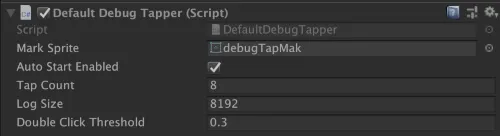
Set any Sprite you like as MarkSprite (debugTapMark.png is fine), and check Auto Start Enabled.
Now, as soon as the game starts running, 8 pointers go wild, tapping, dragging and long-pressing all over the screen. Note that there needs to be an EventSystem somewhere in the scene.
Having it start hammering away the moment the app launches is probably inconvenient, so it's best to leave the component's enabled set to false.
Setting objects to exclude
DefaultDebugTapper is set up not to hit objects whose GameObject name contains the string DebugUi, or any of their
descendants. You can use it as is, but if you inherit from DefaultTapper and implement bool ToBeIgnored(GameObject),
you can adapt it to each project's needs.
Customizing where it hits
DefaultDebugTapper hits the screen at random with all its might. But you may want to customize this depending on the scene.
For example:
- In move-selection mode, it should favor the move cards
- It should hardly ever press the retreat button during battle
- It mustn't press the clear-cache button
- Dragging is the main input, so random input won't move the game forward
It's a good idea to customize it so you get a better test than you would by leaving everything to chance. If the game has an AI, combining the two even lets you "auto-play the game through the same code path as a person actually tapping the screen." When the UI is complex, or networking or animation is involved, managing UI state gets complicated and bugs inevitably creep in, so it's important to test through the same path a human would use, as far as possible.
To do this, inherit from DebugTapper and implement void UpdateTap(int tapIndex), and you can do whatever you want.
For example, DefaultDebugTapper's implementation looks like this:
protected override void UpdateTap(int tapIndex)
{
    const float durationMedian = 0.1f;
    const float durationLog10Sigma = 0.5f; // at 3SD, 1.5 == 3.3 seconds
    const float distanceMedian = 0.01f;
    const float distanceLog10Sigma = 2; // 100x up and down
    var fromPosition = new Vector2(
        Random.Range(0f, (float)Screen.width),
        Random.Range(0f, (float)Screen.height));
    var distanceLog = NormalDistributionRandom();
    distanceLog *= distanceLog10Sigma;
    var distance = Mathf.Pow(10f, distanceLog) * distanceMedian * Mathf.Max(Screen.width, Screen.height);
    var rad = Mathf.PI * 2f * Random.value;
    var v = new Vector2(
        Mathf.Cos(rad) * distance,
        Mathf.Sin(rad) * distance);
    var toPosition = fromPosition + v;
    var durationLog = NormalDistributionRandom();
    durationLog *= durationLog10Sigma;
    var duration = Mathf.Pow(10f, durationLog) * durationMedian;
    Fire(tapIndex, fromPosition, toPosition, duration);
}
The important part is the last line: you call Fire() with three pieces of information, "where to press," "where to
release," and "how long to take." Positions are in screen coordinates. If you branch properly depending on the scene,
you can implement a scenario that goes through every screen in order, and if you want to get fancy, you could even feed
that scenario in from outside as a script.
The code above is written so that "most inputs are short-distance, short-duration taps, but every so often a long-distance, long-duration one is mixed in." It's tuned so that long presses and drags happen just often enough, using the log-normal distribution. It's a very handy distribution, so I'll probably write a blog post about it some other time.
Keeping debug objects out of the scene
Putting a gameObject with DebugTapper on it in the scene is easy, but debug objects placed in a scene end up in the release version too. To avoid that as much as possible, I create debug objects dynamically in code. The code ends up looking roughly like this:
var go = new GameObject("DebugTapper");
tapper = go.AddComponent<DefaultDebugTapper>();
tapper.ManualStart(8, tapMark);
tapper.enabled = false;
Just new up a gameObject, add DefaultDebugTapper with AddComponent, and call ManualStart(). enabled is set to false
because I want it to stay off until it's switched on from the debug menu. If you want it to start hammering the moment
the app launches you can skip that, but I doubt you will.
Operation
So how do we actually put this to use?
What I recommend: before leaving the office at night, run the product in the editor on your PC, turn on the automatic tapping, and just go home. If it's still alive in the morning with no errors, you can breathe easy; if it's dead, you rush to fix it. If every programmer on the team makes this a habit, you get 10+ hours × headcount of testing every day at almost zero cost. Try working it out as if you were paying someone XX yen an hour to test. How much can you save?
In my limited experience, an app running this for the first time may die within seconds from errors like these:
- Something unexpected gets hit during an animation, causing unexpected behavior
- An event fires after an object has been destroyed, and it dies on a null
- Something unexpected gets hit just before or just after a scene transition, and it dies on a null after destruction or before initialization
- The object that blocks input during network communication gets left on screen, and the game can't progress
- Someone forgot to restrict input during communication, so an API gets hammered, or the scene changes before the result comes back
In multiplayer matches, errors where network timing and UI input interact to produce an invalid state are also likely. Even when there's been a fair amount of human test play and people feel safe, the code has rarely been written with button mashing, multi-touch and input at specific moments in mind, so when you throw automatic tapping at it, things usually go horribly wrong.
Also, after release it's quite common to have "crash reports coming in now and then, with no hope of reproducing them." With automated tests, you have a chance of reproducing even rare bugs at low cost.
When you run it, I recommend putting in as many Asserts as you can and logging them. Back in the development of Tokyo Prison, each game spat out several hundred KB of logs, and about 150 games ran every night. Every morning we searched tens of MB of logs for the string "Assert", and if there was even one hit, we treated it as a bug and fixed it, over and over. Near the end of development we went as far as renting 6 machines on Amazon Web Services (AWS) EC2, running 3-vs-3 multiplayer matches automatically all night, and confirming that not a single error came up. Doing it on a row of real smartphones would make it even more robust, but with smartphones, building, installing, battery issues and so on make it a hassle very quickly, so that comes down to budget.
Security rules may sometimes stop you from leaving a PC running when you go home, but if possible, the ideal is to run it on the very PC you normally develop on and then head home. How close you can get to that will depend on your organization. Once you lose the ease of "just press a button and go home," it becomes a chore, nobody runs it, and you throw away the cost savings of "dense testing (QA) almost for free." Even just using a separate PC added one more step, "pull the latest, then run," and it suddenly became a chore. AWS EC2 was even worse because of the hassle of logging in remotely. Adding even a few seconds of effort noticeably kills motivation, so don't underestimate the friction problem.
Another effective trick is to make a standalone build and launch several copies of the app on one machine to test in parallel. For a smartphone app, even a laptop should be able to run about 4 at once, which makes the test 4 times as intense. So it's worth keeping the standalone build in working order. Getting AssetBundles to build for standalone is probably the most troublesome part. I also recommend building solid logging so you get just as much information as when running in the editor. As I wrote in the article on debugging with Slack, it's good to collect logs automatically in Slack or the like.
Logging feature
To help with debugging, there's a logging feature. It records when each event fired, from which pointer, on which
gameObject, and what event it was, and you can get it with LogItems or LogText.
Profiling support
The handlers that events trigger tend to do heavy work. Code like "when the button is pressed, Instantiate the pause menu prefab" causes spikes.
If you place everything in the scene up front to prevent spikes, even data you may never use, then scene initialization gets slow instead, and it eats extra memory. Initializing some things dynamically is the more reasonable design.
Still, severe spikes hurt too, so to help track them down, I made the event calls show up in the profiler. It just uses CustomSampler before and after calling the event functions.
Even without enabling DeepProfiling, you can at least tell whether there's heavy work under OnPointerClick or OnPointerDown.
Implementation
Reading the DebugTapper code will tell you everything, but unfortunately the implementation is quite a pain, so I'll explain it a little.
Overview
The basic idea is to piggyback on EventSystem. That reduces the amount of code, and keeps it as close as possible to the path a real person's tap takes (in apps that take input through EventSystem, of course).
The basic flow is:
- EventSystem.current.RaycastAll() at the point where you want the tap to happen
- Pack various things into a PointerEventData.
- Fire the event with ExecuteEvents.ExecuteHierarchy().
Put like that it looks easy, but there's no documentation at all on what goes into PointerEventData, when events fire, what order they fire in, and so on. The only option is to read the official code.
If you read the official code and reproduced it completely, it would presumably behave the same, but replicating all of it faithfully is far too much of a pain, so this implementation doesn't go all the way.
Fidelity
How faithful it needs to be depends on how much the app relies on the standard behavior. For example, if the app uses PointerEventData.rawPointerPress, you have to fill in the data the same way the official code does. And if the app relies on Up firing before Click, you have to match that. Otherwise the test loses its value.
The main places where this implementation cuts corners instead of matching the standard are below. If you need them, feel free to do the work of bringing it in line with the standard (and please do send it my way).
- Enter and Exit don't fire
- Move and Scroll don't fire
- eligibleForClick, button and scrollDelta aren't filled in
- worldPosition and worldNormal aren't filled in, partly because they're obsolete
- The contents of pointerPress and pointerDrag are subtly different
- In the official code, if there's no down handler, up doesn't come either, but this implementation fires up on its own
Some of these I deliberately left unmatched, because I also want to catch "code that would break if the official behavior changed even slightly." The official behavior isn't documented; it's merely "the current implementation." There's no specification at all for the order of up, click and dragEnd, or for what the PointerEventData fields contain at each event. There are lots of questions like "In EndDrag, is dragging still true, or already false?"
As for Enter and Exit, I only learned this from reading the implementation, but they don't fire while dragging by touch. You get Enter when you press and Exit when you release. That makes them practically useless with touch, and they're a pain to implement, so I decided not to fire them at all. Code that expects "Exit comes when the finger slides off the card" is dangerous. With a mouse in the editor it does fire, so you come to believe that's how it works (as I once did). Likewise, "if there's no down handler, up doesn't come" was news to me this time.
Destroyed partway!
One thing to watch out for in the implementation is that objects can disappear partway through. There's no guarantee that the object Down fired on will still be alive at Up. You need to handle the case where it turns into null in the middle.
To make things even trickier, events propagate to the parent. For example, a button is made up of an Image with a Text child, and even if the Raycast hits the Text, if the gameObject holding the Text has no event handler, the event propagates up to the Image.
So what should happen if it's destroyed right after Down, or destroyed during a Drag? Should the Up after Down be sent to the parent? Should the rest of the Drag, or EndDrag, be sent to the parent? The answer determines whether you use ExecuteEvents.ExecuteHierarchy() or ExecuteEvents.Execute(). You need to keep this kind of thing in mind too. In the official code, Up fires only on the object that Down fired on. If you match that, you use Execute() (I'm not null-checking, but is it actually OK for Execute's first argument to be null?).
Closing
What I most want to get across is "let machines do the tedious stuff." No human can relentlessly repeat taps at this density. But when hundreds of thousands of customers use the app every day, their combined time dwarfs a few people playing for a few hours. To get even a little closer to that before release, you need automation.
When I asked our QA (quality assurance) engineer for feedback on this article, they said the tool could also grow in directions like these:
- Graphing the mean time until a crash and including it in the KPIs
- Collecting statistics on coordinates and making a heat map of "this area is dangerous"
Their point was that by growing the automated tests, we might be able to grow the team's whole approach to quality assurance.
So the possibilities are exciting, but the implementation is quite a pain, so it takes some determination. Back on Tokyo Prison it only supported Down, Up and Click, so it was easy, but later it went into a product where dragging was essential, and I ended up having to read the official EventSystem implementation. I believe that "if you have to read the code, you've lost," but there was no other way. For an app I worked on myself, I can say with confidence that Down, Up and Click are enough, but for a product I didn't work on, I have to assume I don't know how it's put together. In the end, full reproduction is probably what's needed.
To be honest, I sometimes think it would be better to write your own InputModule. Then you could document the exact specification before building the app. Going further, if you write the whole EventSystem yourself, you don't have to hand the app types like PointerEventData, "a type where you can't tell what it contains when without reading the implementation." On top of that, you could add the feature I want so very, very badly: "don't consume the event on this object; pass it through to the object below."
But it's better not to. Let's just keep making do. Sticking with the standard has big benefits, and if a homemade version ended up mixed in with the standard one, who knows what kind of accidents would happen.