

Compute Shaders on Low-Priced Smartphones
Hello. I'm Hirayama from the Technology Department.
In this article I use a simple sample to test an idea: "Could compute shaders help make things better on low-priced devices?"
Conclusion
Let me start with the conclusion. Meh.
First, the numbers. These are frame rates (fps, frames per second) from a particular test.
| Data size | CPU | ComputeShader |
|---|---|---|
| 1024 | 52 | 55 |
| 2048 | 15 | 17 |
| 4096 | 4 | 5 |
Switching from the CPU to ComputeShader makes it maybe 25% faster under very heavy load, and that's about it. Under lighter load, the difference shrinks. The machine used for the measurements is Sharp's Android One S3, and the chip is the msm8937 (Snapdragon 430), a chip for the budget segment (under ¥40,000) that started appearing in the second half of 2018.
While we're at it, let's look at a high-end model that happened to be lying around: a Galaxy S9+ (SCV39).
| Data size | CPU | ComputeShader |
|---|---|---|
| 4096 | 16.5 | 60 |
Expensive phones sure are fast. It really hits home. The numbers are fps, so 60 is the ceiling; it might actually be capable of 100, or 200. At the very least, we can see that moving the work from the CPU to the GPU gives close to 4 times the performance.
I also took the same measurements on a MacBook Pro 13'' 2018.
| Data size | CPU | ComputeShader |
|---|---|---|
| 4096 | 18 | 60 |
Here too the GPU side might be capable of more than 60, but the difference is at least close to 3 times.
Still, the PC and the Galaxy S9+ having about the same CPU performance is a bit suspicious. Something may be off, so please don't take the numbers at face value. I'll summarize my concerns about this implementation, and what could be improved, later on.
How I measured
I've put the project on GitHub.
First, fill an RGBA32 texture of a given size with random colors, treat each texel as a 32-bit integer, and transform it with XorShift, a random number algorithm. Like this:
static void XorShift32(ref Color32 c)
{
    uint x = ((uint)c.a << 24) | ((uint)c.r << 16) | ((uint)c.g << 8) | c.r;
    x ^= x << 13;
    x ^= x >> 17;
    x ^= x << 5;
    c.a = (byte)(x >> 24);
    c.r = (byte)((x >> 16) & 0xff);
    c.g = (byte)((x >> 8) & 0xff);
    c.b = (byte)(x & 0xff);
}
It packs RGBA into a 32-bit integer, does some mysterious arithmetic (the part with 13, 17 and 5), and unpacks it back into RGBA. A texture format with a single 32-bit integer channel would make this unnecessary, but I don't know whether that works on every device, so I went with RGBA32, which is guaranteed to work.
With a 1024x1024 texture, you get about a million random number sequences, and the calculation updates each of them independently. Since every element is completely independent of the others, it's the kind of calculation the GPU is good at.
By the way, the screen looks like this.
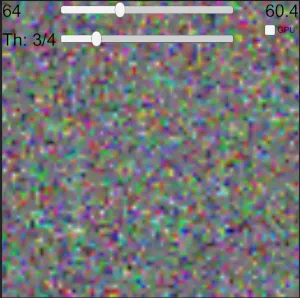
In this example the resolution is 64x64, so the grainy pattern is easy to see. The "GPU" checkbox is off, so it's calculating on the CPU; the frame rate (FPS) is 60.4; and "Th: 3/4" means the CPU calculation uses 3 threads and Unity reported 4 processors. Which thread count is fastest is surprisingly hard to know until you try, so I added a slider.
With ComputeShader
The ComputeShader here is just the XorShift processing from above, ported to the GPU. It does the same calculation on the GPU.
I only tried Android this time, and only with the Vulkan API. I didn't try iOS, but it probably works on iPhone 5s and later. I'll go over the implementation later.
Measurement details
Here's the data once more.
| Data size | CPU | ComputeShader |
|---|---|---|
| 1024 | 52 | 55 |
| 2048 | 15 | 17 |
| 4096 | 4 | 5 |
This means that when updating each pixel of a 2048x2048 texture with XorShift every frame, the frame rate was 15 fps on the CPU and 17 fps with ComputeShader. Going to 4096x4096 makes the calculation 4 times bigger, so you'd expect performance to drop to 1/4, but it doesn't drop that far. That's due to a flaw in the measurement method, and to the overhead of the other work that happens every frame.
The flaw in the measurement method is VSYNC, that is, vertical sync: the frame rate never goes above 60 fps, and when it can't hold 60 fps it drops sharply to 30 fps. To measure properly you'd need a procedure like the one used in KonchiBench a while back, but this time a rough idea was enough, so I didn't build a rigorous benchmark.
Interpreting the CPU side
This data is from the Snapdragon 430, whose CPU has 8 cores. If we don't measure with a suitable number of threads, we won't get the CPU's full performance and the GPU will have an unfair advantage, so let's check. These measurements are at resolution 2048.
| Threads | fps |
|---|---|
| 1 | 8 |
| 2 | 13 |
| 3 | 15 |
| 4 | 15 |
| 5 | 14 |
| 6 | 14 |
So 2 threads give roughly 1.5 times the performance of 1 thread, one more thread makes it slightly faster, and beyond 5 it actually gets slower. Probably only 4 cores run at the same time. I imagine it's designed so that when it's busy only the 4 faster cores run, and when it's idle the 4 slower, power-saving cores take over.
The right number of cores depends on the calculation; for example, at 1024x1024, a few more threads can be faster. Heat and battery probably play a part too.
Anyway, judging from these measurements, I think it's fair to say that "use N cores and get N times the performance" is nothing more than an ideal. The thread pool here is homemade, so maybe it's not very good, but I, for one, have never seen a case where doubling the number of threads doubled the performance. Even 1.5 times is on the good side.
The trendy JobSystem might be fast, but when I tried it in the editor and in a Standalone build, it came out at about 1/4 the speed of my homemade thread pool. The GPU is the star of this article, so I didn't dig any further.
Thinking about the GPU-to-CPU ratio
From these results we can say that "even on cheap devices, doing on the GPU whatever can be done on the GPU does seem to be faster." But the gain is pretty disappointing. Tweaking the ComputeShader settings probably won't double the speed or anything.
Now let's step back and consider a fundamental question: "Is it right to make the GPU do things the CPU can also do?"
Rendering, that is, running shaders, can only be done by the GPU. If the GPU is busy rendering, then doing the work on the CPU, even if it's a bit slower, and letting the GPU concentrate on rendering will probably give better quality overall. There were oddball machines like the PLAYSTATION 3, where "the CPU side has lots of mysterious cores with amazing performance, and it's faster to get them to help with rendering too," but that's probably an exception. In most games rendering is the most important workload, so the GPU should spend as much time rendering as possible.
However, depending on the kind of game, the CPU may be busy while the GPU has capacity to spare, say, a game with an extremely heavy crowd simulation. In cases like that, it may be better to take work away from the CPU and actively hand it to the GPU.
And where this balance lies depends on the performance ratio between the GPU and the CPU.
If the GPU were 100 times faster than the CPU, then "don't do it on the CPU unless you really have to" would be the right answer. Even if it takes a little rendering time away from the GPU, it frees up a lot of CPU time, which you can spend on all sorts of extra things. Overall, quality would go up.
But as this ratio shrinks, you're more and more likely to decide "if that's all it buys me, I might as well do it on the CPU." Back in the day, skinning was a frequent subject of this debate.
Also, some newer GPUs are nimble enough to "run ComputeShaders on the side while rendering" (this is known as AsyncCompute). Hardware like this can say, in effect, "I'm busy with texture access, but my arithmetic units are free, so I'll do some calculating," and make effective use of its performance. As GPUs like that become common, you'll want to use ComputeShader more. However, as of November 2019, it seems the only platform where this can be used from Unity is PlayStation 4.
Implementing the ComputeShader
To be honest, this is practically the first ComputeShader I've ever written, so I can't explain it with any authority, but I'll at least walk through it.
#pragma kernel CSMain

Texture2D<float4> Source;
RWTexture2D<float4> Destination;

[numthreads(8,8,1)]
void CSMain (uint3 threadId : SV_DispatchThreadID)
{
    float4 c = Source[threadId.xy] * 255.0;
    c += 0.5;
    int4 i = (int4)c;
    uint x = (i.w << 24) | (i.x << 16) | (i.y << 8)| i.z;
    x ^= x << 13;
    x ^= x >> 17;
    x ^= x << 5;
    i.x = (x >> 16) & 0xff;
    i.y = (x >> 8) & 0xff;
    i.z = x & 0xff;
    i.w = (x >> 24) & 0xff;
    c = i / 255.0;
    Destination[threadId.xy] = c;
}
This is the shader side. The input is Source, a Texture2D, and the output is Destination, an RWTexture2D; the shader simply processes the values read from Source and writes them to Destination.
The calculation itself
The calculation itself is almost the same as on the CPU side, except that "the values read from the texture range from 0 to 1.0, not 0 to 255." You need to multiply by 255 to turn them into integers, and that step needs care.
Converting 0–255 to 0–1 means dividing by 255, and dividing IEEE 754 floating-point numbers by 255 introduces errors. For example, if 255/255 becomes 0.99999, multiplying it by 255 gives something like 254.9999, and truncating to an integer gives 254. So here I add 0.5 before truncating.
If I could have the values come out as integers, none of this hassle would be needed, but I couldn't figure out how to do that in Unity, so I did it this way.
Calculating the index
The next issue is the index: what to write inside the subscript when accessing Source[index] or
Destination[index].
The short answer is simple: just pass the xy of the argument received with the SV_DispatchThreadID semantic as is,
and you're done. Source and Destination are both 2D textures, so the subscript is a two-dimensional integer type, which
means you can write a 2D vector like threadId.xy.
That leaves the question of what SV_DispatchThreadID actually is. In short, it's the coordinates of the texel being
processed. A proper explanation is a pain, but if the shader is set up to be called once per texel in total, for
example 1024x1024 times, every combination from (0,0) to (1023,1023) comes up exactly once. So if you read the value
with Source[index] and write it into Destination[index], you process every texel.
For that to work, though, the CPU side has to be set up to match. I'll briefly explain that next.
C# side: initialization
First, initialization.
renderTextures = new RenderTexture[2];
for (int i = 0; i < renderTextures.Length; i++)
{
    renderTextures[i] = new RenderTexture(size, size, 1, RenderTextureFormat.ARGB32);
    renderTextures[i].enableRandomWrite = true;
    renderTextures[i].Create();
}
Graphics.Blit(texture2d, renderTextures[1]);
First we create the RenderTextures that serve as the shader's input and output. Whether the input and output can be the same texture depends on the device, so I prepare two and swap their roles every frame. At first, number 0 is the input and the processed result goes to number 1; in the next frame, number 1 is the input and the output goes to number 0.
After constructing them, set enableRnadomWrite to true so the ComputeShader can write to them, and then explicitly call Create(). If you Graphics.Blit() to it, or set it as RenderTexture.active, Create gets called internally for you, but with ComputeShader there seems to be some reason that can't happen. Anyway, it's required, so call it.
The Blit on the last line copies texture2d, a noise texture generated on the CPU, into RenderTexture number 1, which becomes the first input. From then on, no data at all comes back to the CPU; it just goes back and forth between the two RenderTextures.
C# side: every frame
Next comes the per-frame processing.
var kernelIndex = computeShader.FindKernel("CSMain");
computeShader.SetTexture(kernelIndex, "Source", renderTextures[1 - writeBufferIndex]);
computeShader.SetTexture(kernelIndex, "Destination", renderTextures[writeBufferIndex]);
uint sizeX, sizeY, sizeZ;
computeShader.GetKernelThreadGroupSizes(
    kernelIndex,
    out sizeX,
    out sizeY,
    out sizeZ);
computeShader.Dispatch(
    kernelIndex,
    size / (int)sizeX,
    size / (int)sizeY,
    1);
image.texture = renderTextures[writeBufferIndex]; // feels like this should wait for sync
writeBufferIndex = 1 - writeBufferIndex;
You get the ComputeShader object through SerializeField or some similar means. Here it's the variable computeShader.
Next, get the ID of the function to use with CoumputeShader.FindKernel().
var kernelIndex = computeShader.FindKernel("CSMain");Here there's only one function, so it's always 0, but there may be several, so looking up the number by name is good practice.
Then set the input and output RenderTextures with ComputeShader.SetTexture().
computeShader.SetTexture(kernelIndex, "Source", renderTextures[1 - writeBufferIndex]);
computeShader.SetTexture(kernelIndex, "Destination", renderTextures[writeBufferIndex]);
The variable writeBufferIndex keeps track of which texture is currently the output, and holds 0 or 1.
Next, with
ComputeShader.GetKernelThreadGroupSizes(),
we fetch the values from the [numthreads(8,8,1)] declaration we wrote in the shader earlier.
uint sizeX, sizeY, sizeZ;
computeShader.GetKernelThreadGroupSizes(
    kernelIndex,
    out sizeX,
    out sizeY,
    out sizeZ);
Here, sizeX comes back as 8, sizeY as 8, and sizeZ as 1. This is the unit of execution: it processes 8x8 = 64 pixels of the texture as one unit. In ComputeShader terms, "8x8 = 64 threads per group."
And then, at last, we run it.
computeShader.Dispatch(
    kernelIndex,
    size / (int)sizeX,
    size / (int)sizeY,
    1);
We specify how many of those units of execution to run. If size is 1024, sizeX is 8, so dividing gives 128, and sizeY is also 8, so that's 128 too. In other words, the 8x8 unit of execution is run 128x128 times, and that covers every texel. In ComputeShader terms, "run 128x128 = 16384 thread groups."
Set up this way, the shader can visit every texel in turn by using the xy of the variable with the
SV_DispatchThreadID semantic as the texture subscript.
If you want to do something fancier, you can cross that bridge when you come to it. For example, if you shrink the
texture to half its width and height, the number of executions is 1/4 of the original number of texels. Inside the shader, the
code would access Source 4 times and Destination once. There are plenty of detailed articles on how to build texture
subscripts from SV_DispatchThreadID, so please look them up; I won't cover it here. This article focuses on "Is it
even fast enough to be useful in the first place?" and leaves aside "what to use it for."
Finally, swap the Texture that the rawImage displays, and flip writeBufferIndex from 0 to 1, or from 1 to 0.
writeBufferIndex = 1 - writeBufferIndex;As an aside, for more than 3 years after I got into this industry, I didn't realize that "subtracting from 1 swaps 0 and 1." And even then I didn't come up with it myself; I just happened to see it in someone else's code. I was terribly annoyed with myself. Until then, I'd been incrementing the value and resetting it to 0 when it hit 2. No matter how simple something is, coming up with it is hard. That experience drove home for me that you can't build everything on your own.
Reconsidering the results
Let's think a little more deeply about the results.
The question is how to interpret the fact that "even though I picked a workload very well suited to the GPU, it isn't as fast as I'd hoped."
My tentative conclusion is something like: "If you prioritize quality on high-end devices, or are thinking about the future, ComputeShader is worth it. But there's no need to force it." Let's compare the low-priced device (Sharp Android One S3) and the high-end device (Galaxy S9+) at 4096 resolution.
| Device | CPU | ComputeShader |
|---|---|---|
| S3 | 4 | 5 |
| Galaxy S9+ | 16.5 | 60 |
The CPUs differ by about 4 times, the GPUs by at least 12 times even on a conservative estimate. The big gap on the GPU side means ComputeShader pays off even more on the Galaxy S9+.
Still, we can say that "even on low-priced devices, having the GPU do it is faster than throwing every CPU core at it," and once you're used to it, writing for the GPU is sometimes easier than writing for the CPU. Here I built my own thread pool, picked the thread count and split up the work myself, which is quite a pain. On the GPU you don't have to think about splitting the work, and the calculation itself can be loaded later or delivered as an asset.
It might be a good idea to start by moving any calculation that looks like it could run in a compute shader over to one. Then you can scale the amount of calculation between low-priced and high-priced devices. For example, if you use it for particles, you could vary the particle count according to performance.
Besides, even in the slow-moving budget segment, GPUs are still getting faster at a better rate than CPUs, so you could argue that "the performance gap between GPU and CPU will keep widening, so you should get used to ComputeShader now."
That said, I also feel there's no need to force it right now.
About graphics APIs
There's also the problem that making ComputeShader a requirement narrows the range of devices your game runs on.
You need a device that runs Vulkan, which rules out devices limited to OpenGL ES 3.0 or earlier. The Android distribution dashboard shows the OpenGL/Vulkan support breakdown of devices currently in use, and about half are still at 3.0 or below. The moment you say "ComputeShader required," you cut off half the Android devices in the world.
Incidentally, the Kyocera S2 that served me faithfully for so long doesn't support Vulkan, so it's out too. If you use ComputeShader today, you'll need a fallback for unsupported devices.
Summary
It was surprisingly slow. Too bad.
For this test I deliberately bought a smartphone that "looks like the weakest possible device that can still run compute shaders," but it didn't give the result I'd hoped for.
Of course, it's possible that a poor implementation is why the data didn't look good.
- I used frame rate as the metric, so there's a lot of overhead, and on top of that it hits a ceiling at 60
- The homemade thread pool implementation may not be good
- There may be room to improve the ComputeShader thread / thread group settings
- It's mainly integer arithmetic, so some GPUs may be at a disadvantage
- The calculation is short, so there may be a lot of overhead, making the true performance hard to see
And so on; plenty of possibilities come to mind.
But I was hoping for something fast enough to make all that irrelevant, say a 10x difference, so even if such tweaks improved things a little, it wouldn't really matter. I'm inclined to leave it alone for a year.
Bonus
After I wrote the article, several people kindly ran the measurements for me, so I'll include their data too. Most of the devices are high-end, so the resolution is 4096 for all of them. For comparison, I've included the Sharp S3 result as well.
| Device | Release year | Chip | CPU | ComputeShader |
|---|---|---|---|---|
| Pixel3 | 2018 | Snapdragon845 | 14.5 | 60.5 |
| XPERIA XZ preium(SO-04J) | 2017 | Snapdragon835 | 10 | 56 |
| Essential Phone(PH-1) | 2017 | Snapdragon835 | 10.5 | 47 |
| XPERIA XZ(SO-01J) | 2016 | Snapdragon820 | 6-7 | 20 |
| Nexus 6P | 2015 | Snapdragon810 | 0.9 | 9.5 |
| Sharp S3 | 2018 | Snapdragon430 | 4 | 5 |
The measurements have very large margins of error, so please treat them as a rough reference only. For example, 20 fps on the XPERIA XZ seems too low. And there's probably some special reason the Nexus 6P's CPU number is so low.
Still, everyone has nothing but high-end devices, huh? It really shows the hopeless gap in GPU performance between cheap and expensive phones. It renewed my conviction that someone like me, at least, has to keep using low-priced devices.
...If I weren't making smartphone games myself, I'd drop ¥100,000 on a high-end device without a second thought, you know. It's not like I'm poor.