

Approximating Average FPS the Easy Way
Hello. I'm Hirayama from the Technology Department.
Click the image to jump to a WebGL build of the sample.
This article is about an idea I had for an easy way to approximate the average FPS (or the average frame time) in games and similar programs.
It's just an idea, and the problem it solves wasn't hard to begin with, so it isn't worth all that much.
The proposed method
I approximate the average FPS like this. It doesn't have to be Unity or C#, or even code for that matter, but code is easier to grasp than a formula, isn't it?
public class Fps{
    public float fps{
        get{
            return 1f / avgTime;
        }
    }

    const float k = 0.05f;
    float avgTime;

    public void Update(){
        var dt = Time.deltaTime;
        avgTime *= 1f - k;
        avgTime += dt * k;
    }
}
The class definition and other incidental bits make it look long, but this is all there is to it:
avgTime *= 1f - k;
avgTime += dt * k;
If k is 0.1, you shrink the previous value to 90% and add 10% of the new one. It's like pouring a little water out of a dirty fish tank and topping it back up.
Motivation
If you compute the displayed FPS from the current frame alone, the value jumps around wildly as the load changes, which makes it hard to read. When the number on screen changes too fast, you can't tell what it roughly is.
One trick is to "update the display only once a second", but if the value you happened to show is off from the average, that misleads you in its own way. "60.1, 59.7, 60.3, 55.3... wait, 55?!" That sort of thing.
To make it easier still to read, you want to smooth out the changes, and the most straightforward way to do that is to average. For example, you show "the average over the last 60 frames". But for that you have to keep the times of the last 60 frames.
float[] times = new float[60];
int index;
You set up something like this, store each frame's time while advancing the index, and recompute the average every frame. A loop of 60 iterations is nothing in terms of load, but declaring the array and writing the loop is a hassle.
For more than 15 years I'd been thinking "it'd be nice to do the same thing without an array or a loop," but I never gave it any serious thought, and here we are.
Approximating with an exponential
What I came up with, "shrink the current value by a fixed ratio, then add the new one", amounts to replacing the average with "a convolution using an exponential function as the window function".
With an average, data more than, say, 60 frames old has no influence at all, but with this method data never loses its influence entirely, however old it is. Also, with an average every frame within the 60 counts the same, while with this method newer frames have more influence and older ones less.
But if all you need is for it to be smooth, that's not much of a problem in practice.
I churn out lots of small samples for the tech blog and elsewhere, and building an FPS display every time is a pain. I could just drop in a class I made earlier and it would work, but even adding a .cs file can be too much bother. It makes the sample bigger, and it's unpleasant to have copies of the same file in lots of sample projects.
With this method, though, you declare one variable and update it in two lines.
I want to show spikes too
That takes care of the average FPS, but when I look into performance seriously, I also put "the longest frame time in the last 60 frames" on screen: what's known as a "load spike."
This is a hassle too: you need to keep the times in an array and search for the largest one every frame. If you already had a loop to compute the average, you'd do it on the side, but this method got rid of the loop, so there's no "side" to do it on.
Is there a way to do something similar for this too, without a loop?
There is, if rough is fine
There is. Like this:
public class Spike{
    const float k = 0.05f;
    float sqSpike;

    public float spike{ get{ return Mathf.sqrt(sqSpike); } }

    public void Update(){
        var dt = Time.deltaTime;
        sqSpike *= 1f - k;
        sqSpike += (dt * dt) * k;
    }
}
The trick is the squaring.
sqSpike *= 1f - k;
sqSpike += (dt * dt) * k;
You keep adding the squared frame times, and when someone asks for the value you return the square root. Squaring
makes large values contribute more and small values contribute less. For example, the average of 1 and 10 is
11/2=5.5, but if you square them before adding, you get 1*1+10*10=101, and the square root of its average is
sqrt(101/2)=7.1. The 10 shows up more strongly than the 1.
So if something like "it was 16 ms all along, but there was one 200 ms spike" happens, the 200 ms shows up strongly and lingers for a while. The displayed value keeps going down, so you can't tell "how many milliseconds was the spike?", but at least you can tell "there was a spike". And usually that's enough.
Having actually used this, I feel that squaring isn't quite enough. Going as high as the 8th power or so is fine.
In that case, when you use the value you take the 8th root (pow(x, 1f / 8f)). The higher the power, the more the
large values contribute, so spikes become easier to see. For example, with the earlier 1 and 10, cubing gives
1*1*1 + 10*10*10 = 1001, and dividing by 2 and taking the cube root gives 7.9. The 10 contributes even more.
However, if you make the power too high, the effect on the value lingers too long, and there are also issues with numerical error, so keep it moderate.
A caution about deltaTime
If you use Time.deltaTime, it is affected by Time.timeScale and Time.maximumDeltaTime, and can drift from real time.
It's a bit more trouble, but it's safer to compute with real time, using Time.realtimeSinceStartup or System.DateTime.
Sample
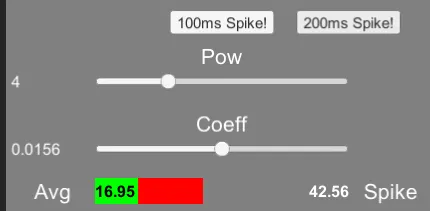
In this sample you can adjust the power and k (which decides how fast older values fade out) and see how that changes the way the display feels. Press the button labeled "100ms Spike!" and a 100 ms spike happens, so you can see the red graph showing spikes shoot up and pull away from the green graph showing the average. "coeff" in the sample is the k in the text. The larger it is, the faster old values lose their influence and the more sensitive it is to new values. The smaller you make it, the closer the value gets to an average over a long time. My personal feeling is that somewhere from 0.01 to 0.05 works well.
Closing
I kept it to the narrow topic of "FPS display" because that's concrete for me, but whenever you want to sample a value that changes over time and watch how it changes, this method applies as is.
You don't need to keep all the samples and you can update it incrementally, so it may be especially valuable when the number of samples is enormous.